NES/Famicom Emulator for PlayBook
NES/Famicom emulator for BlackBerry PlayBook
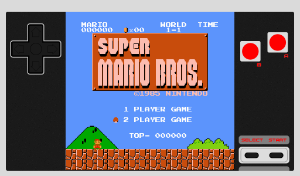
A faithful NES/Famicom emulator for the BlackBerry PlayBook with an authentic Famicom look & feel — built on the FCEUX codebase, rendered in pure OpenGL ES with OpenAL sound, and wrapped in a real gamepad-style UI.
Info
This port is based on the FCEUX 2.1.5 emulator. I decided not to use SDL for PlayBook because it was software-rendered at that time, and built it purely with OpenGL ES and OpenAL for sound. FCEUX is modified to compile as a library for ease of use. I tried to make the look and feel as authentic to the gamepad as possible, so you will probably never see a fullscreen feature — it's hard to fit a 4:3 aspect ratio into the PlayBook's 16:9 without distortions or cropping.
Part of the gamepad design was taken from the NES controller SVG by Fant0men.
Just for history — the first finished game on PlayBook was Banana Prince.
Releases
1.1.0.0 r57 — New sound sync and buffers handling code. It may still randomly glitch a bit though.
1.0.1.0 r56 — First release that is actually playable, though it never got to App World.
How to install
Download the .bar file by clicking on the cute gamepad icon above.
Download the BlackBerry Command-line tools for Android Apps and unzip. It's the smallest tools package you can download to install .bar files, otherwise you would need the full SDK.
Switch your PlayBook to Development Mode to upload .bar files to it.
Linux / Ubuntu
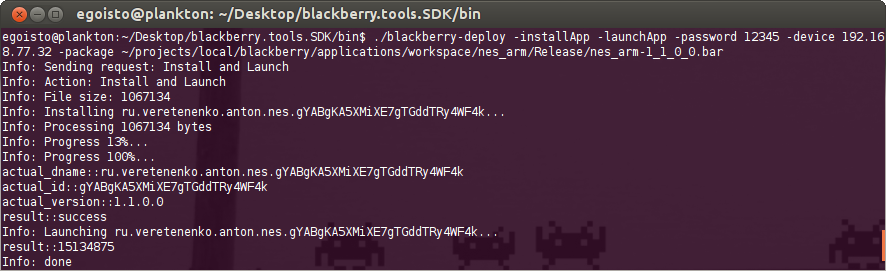
Open a terminal, change the current directory to blackberry.tools.SDK/bin and use blackberry-deploy with the password (which you set when turning on Development Mode), the IP from your PlayBook and the path to the downloaded .bar file.
For example:
./blackberry-deploy -installApp -launchApp -password 12345 -device 192.168.1.10 -package ~/Desktop/nes_arm-1_1_0_0.bar
Output should look like this:
Windows
Unpack tools to Desktop. Put the .bar file into CommandLineTools_1.5.2\blackberry.tools.SDK\bin.
Open the command line via Win+R, type "cmd" without quotes and click OK.
In the command line type "cd Desktop\CommandLineTools_1.5.2\blackberry.tools.SDK\bin" without quotes and press Enter.
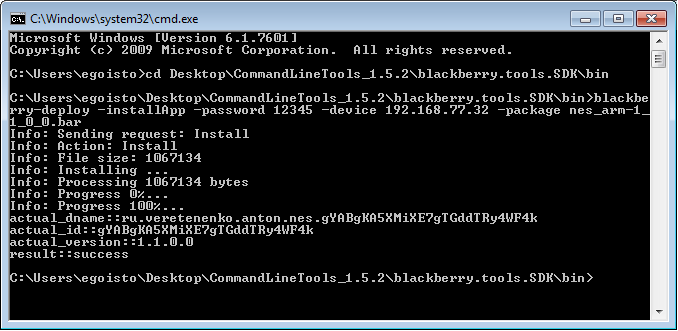
Then type blackberry-deploy.bat -installApp -password 12345 -device 192.168.77.32 -package nes_arm-1_1_0_0.bar without quotes and substitute your own PlayBook password and IP address.
Done, the result should look like this:
ROMs
The FCEUX code base makes it possible to play almost all games available, even awful pirated Chinese ports.
Put ROMs into the media/misc/NES folder on your PlayBook.
The emulator does not sort files for you, so the first uploaded ROMs are shown first.
Play
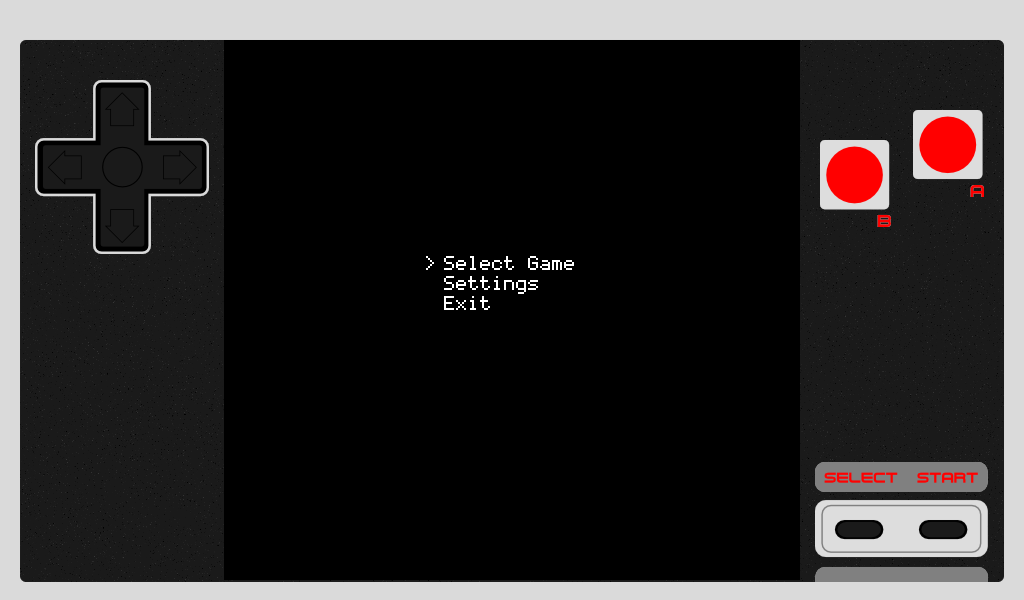
D-Pad up/down controls the menu cursor. Touch A to select a menu item or ROM file. Touch B to go back. Hold up/down to scroll through the menu faster.
Swipe from the top bezel to the screen (PlayBook menu gesture) to pause the emulator and show the menu.
Feature roadmap
On top of the list of things to be done is save support, of course. I was thinking of adding a couple of quick-save slots.
Multiplayer maybe — not sure how it works yet. More mappers. Cheats, etc.
Screenshots
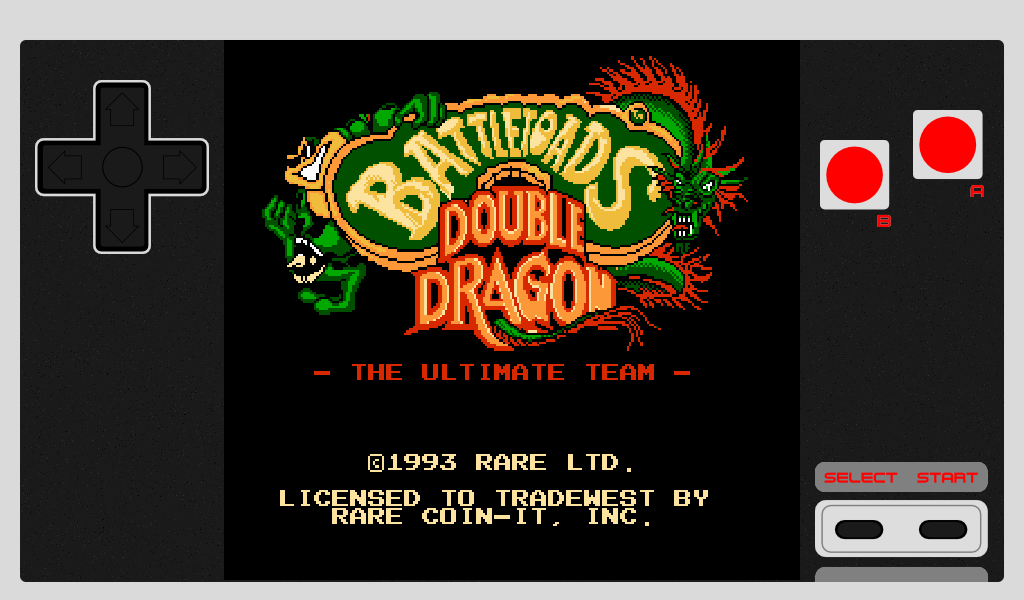
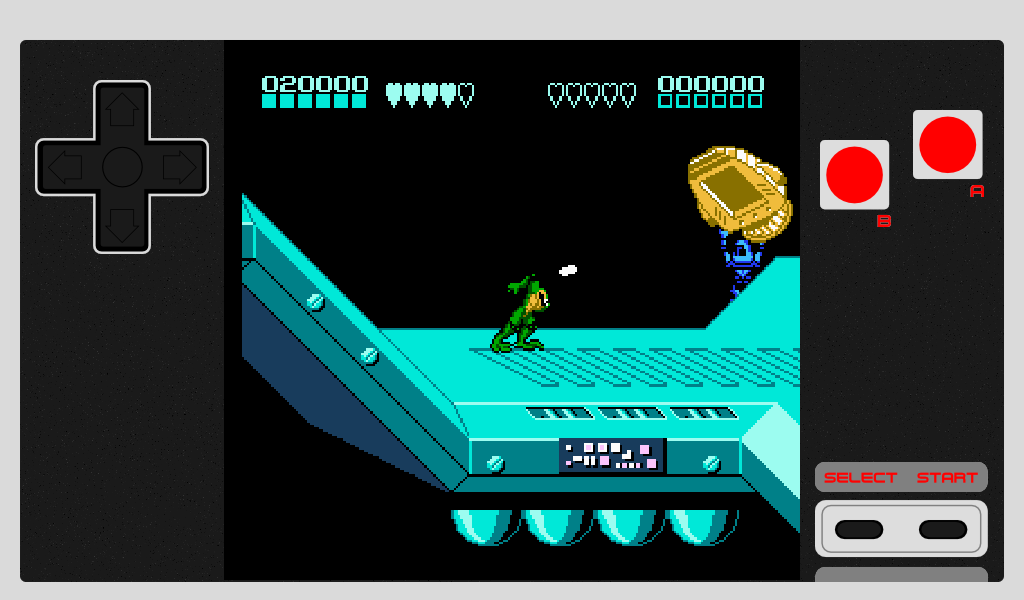
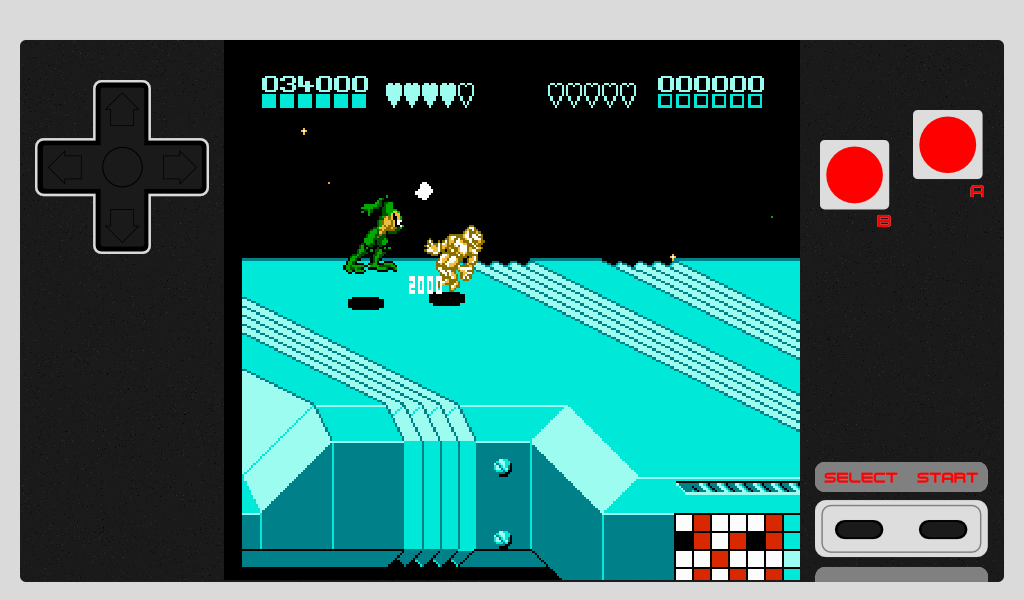
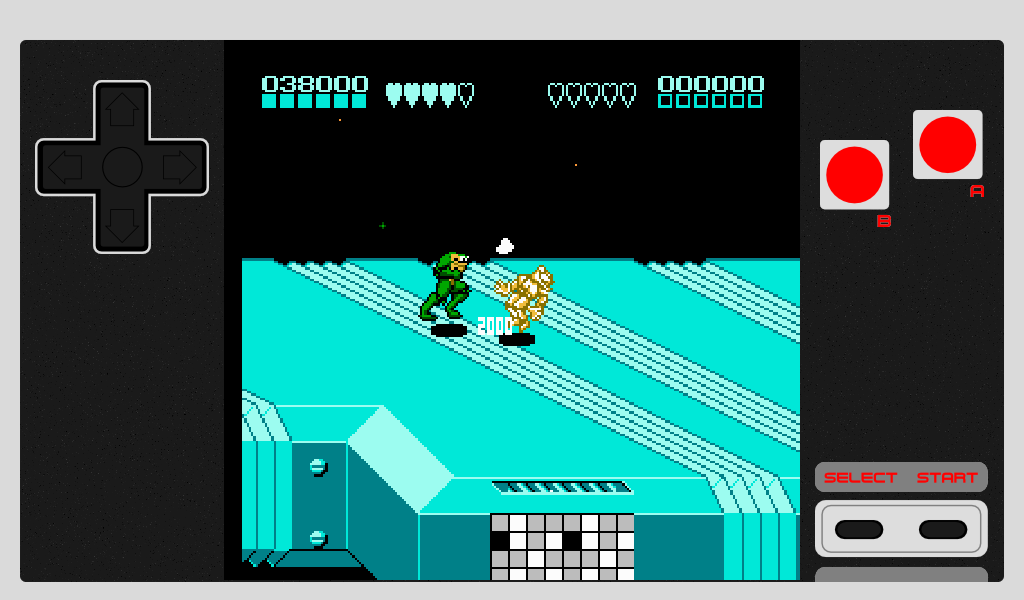
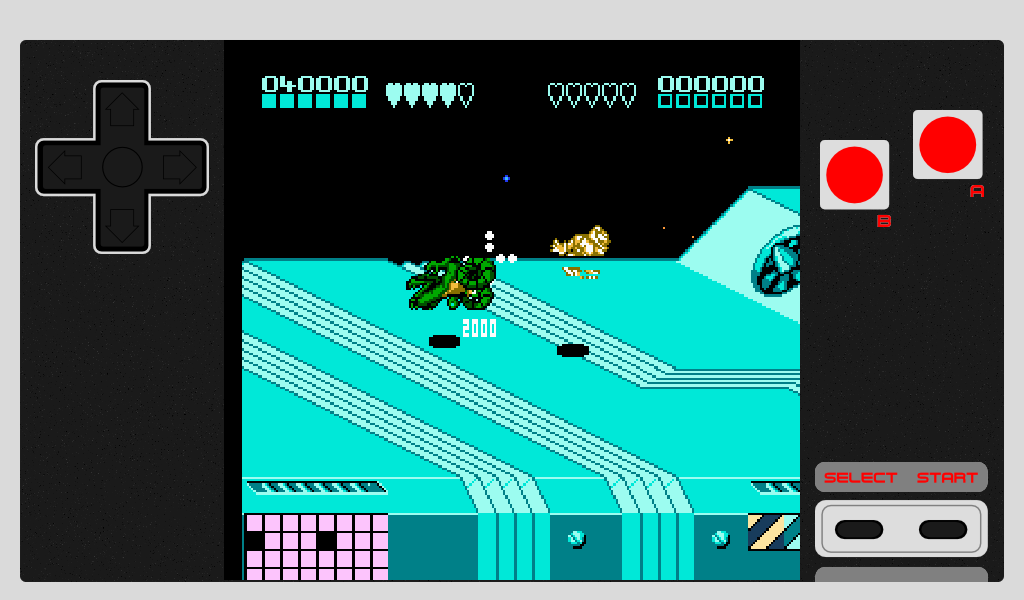
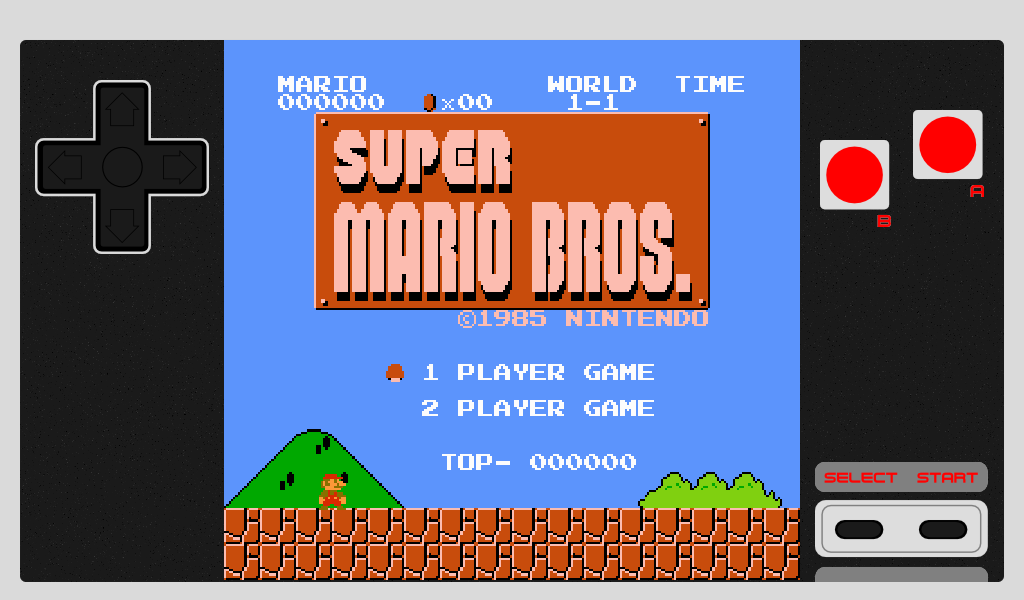
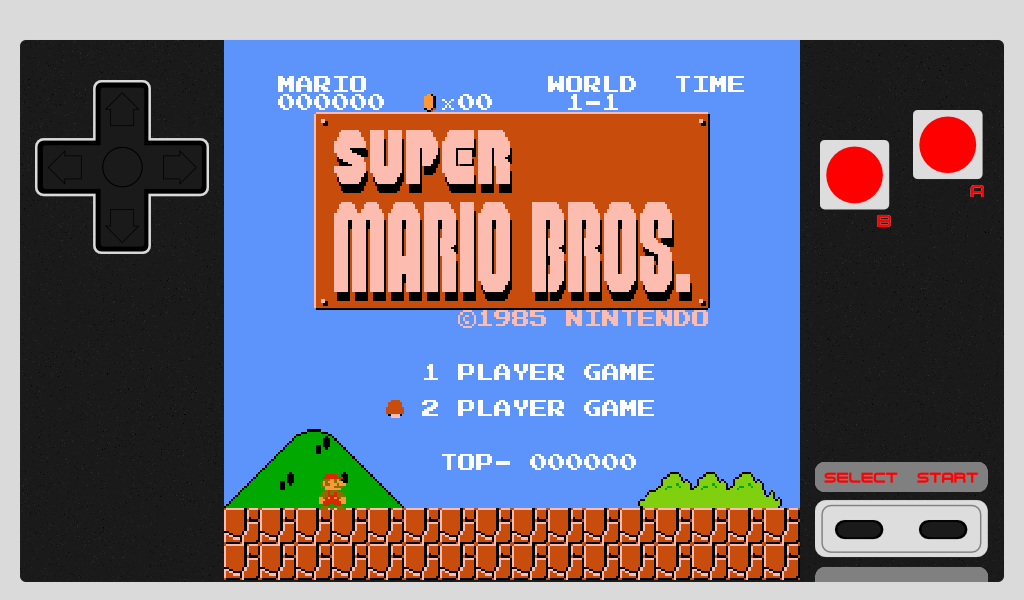
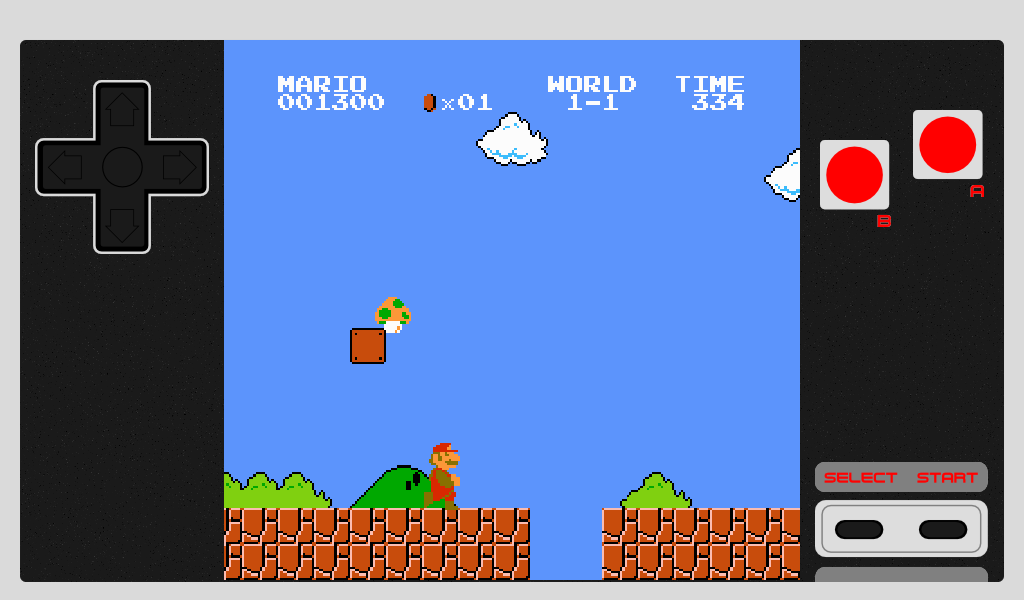
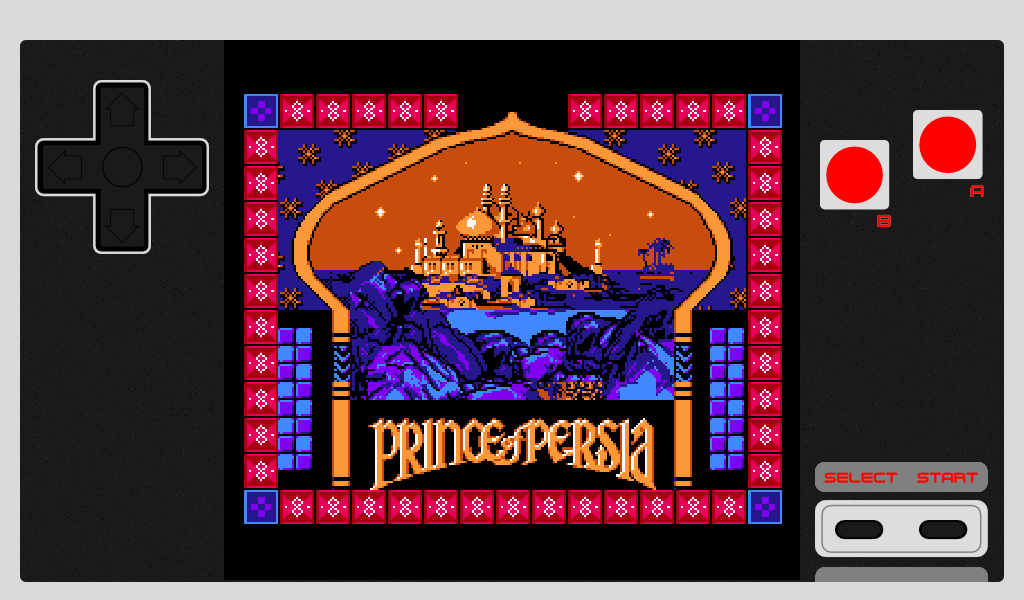
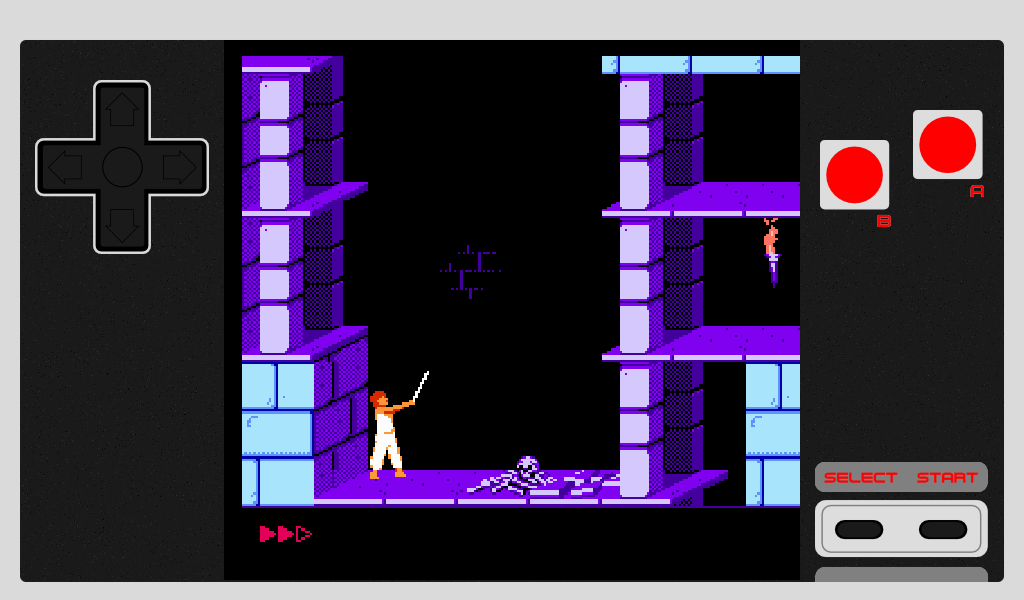
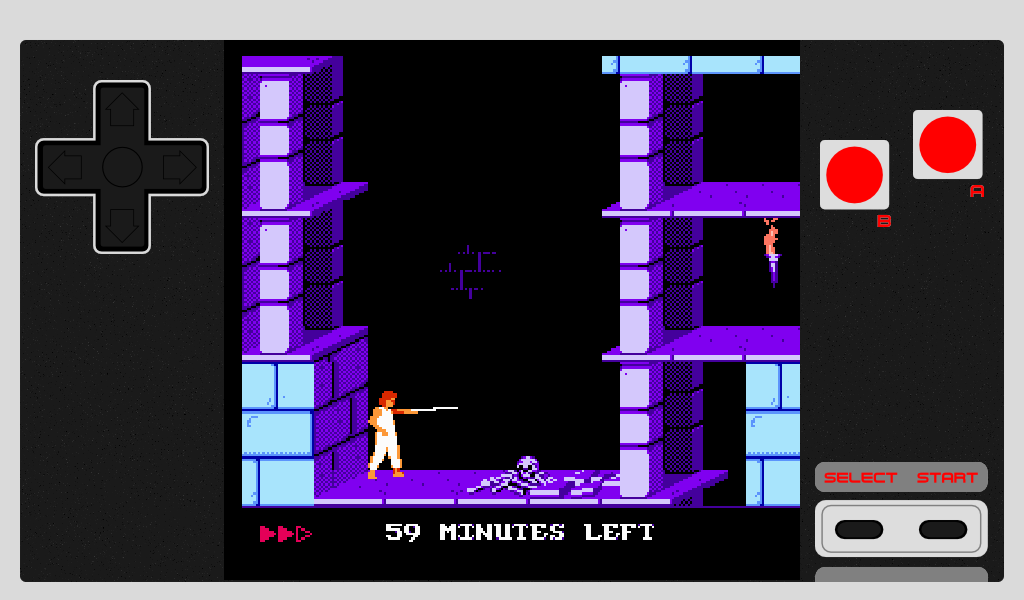
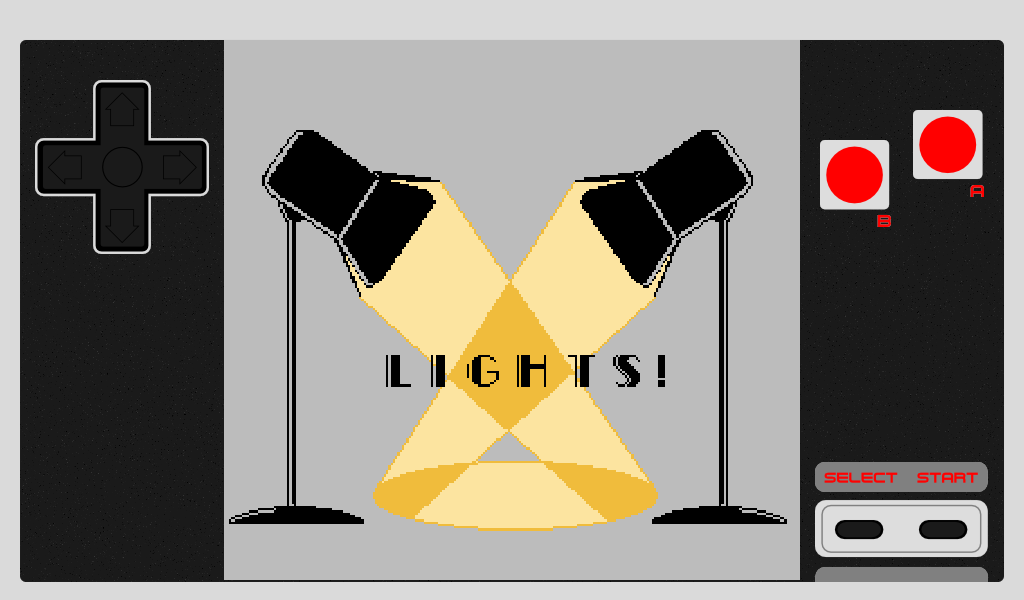
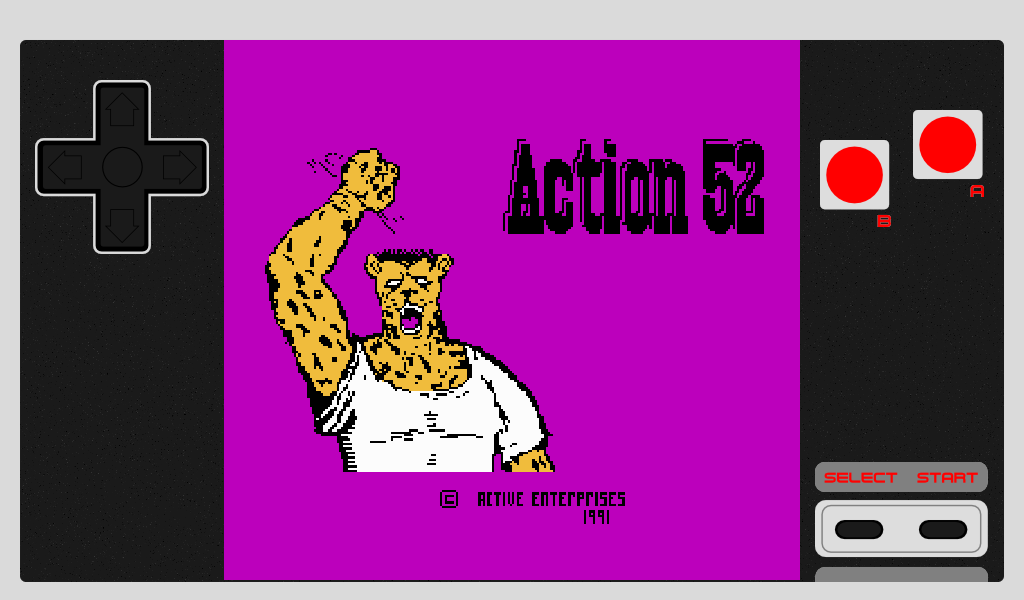
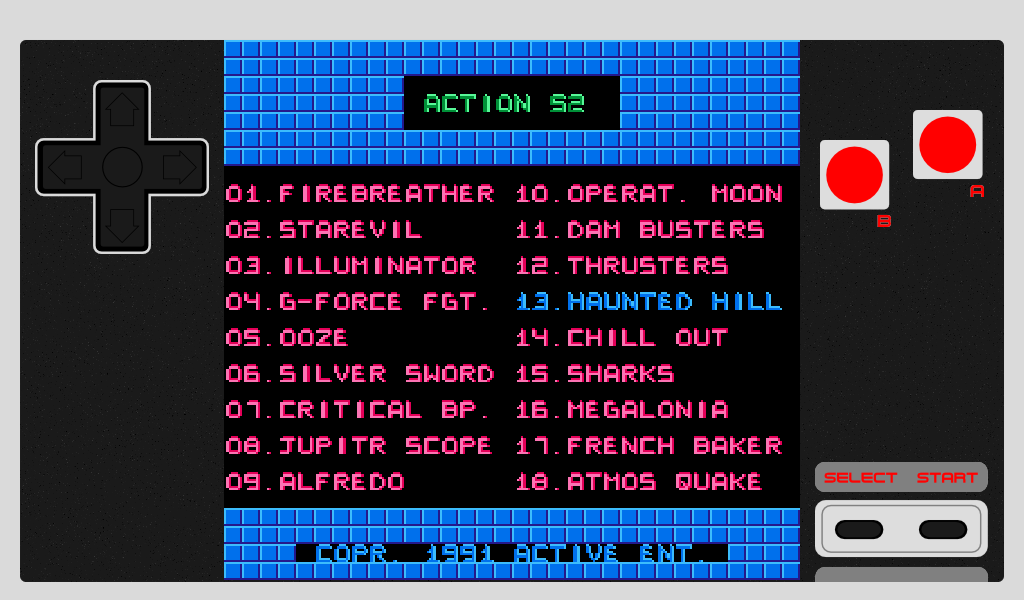
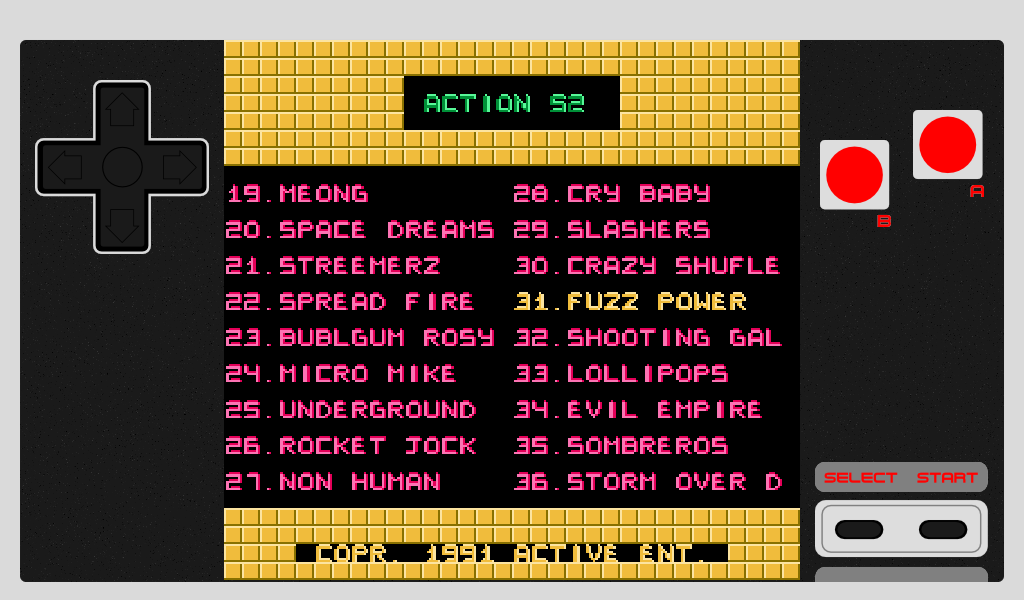
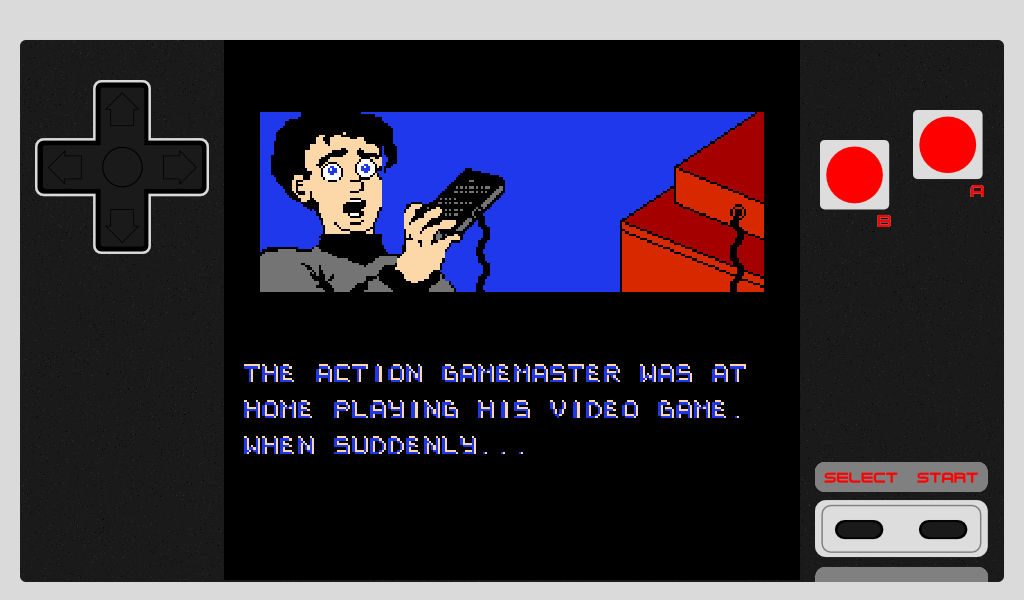
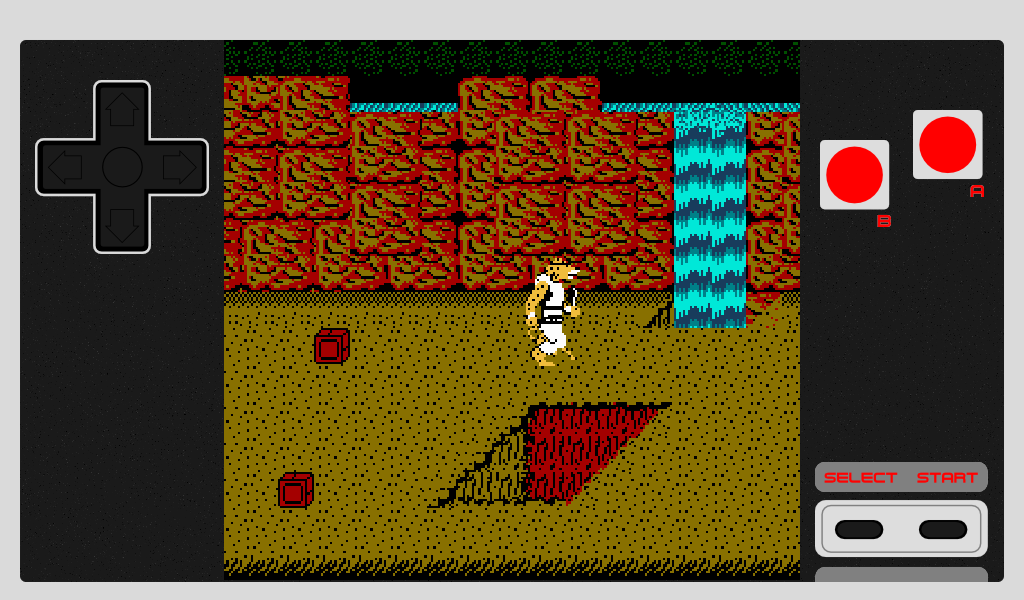
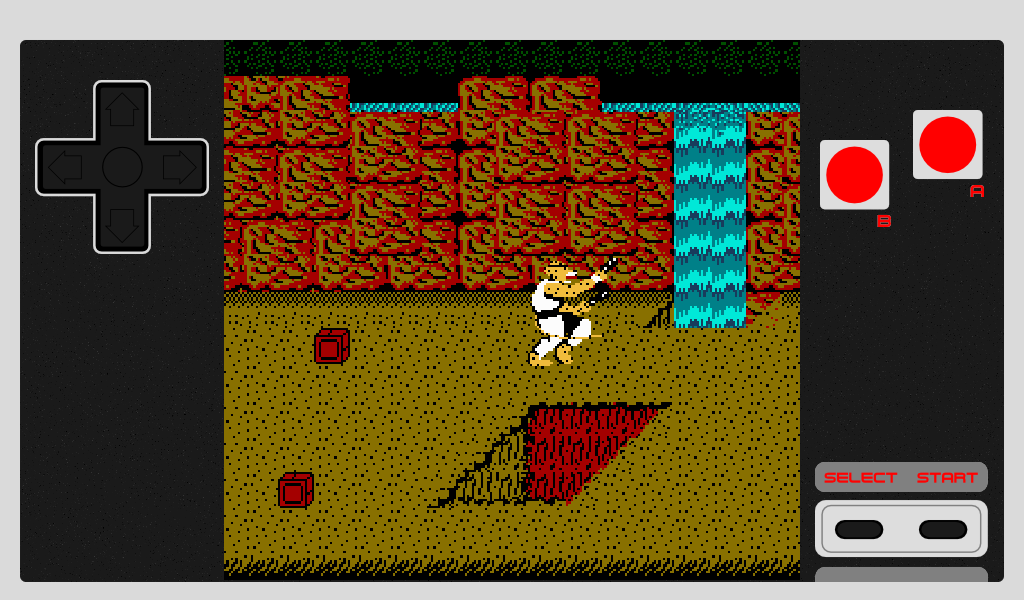
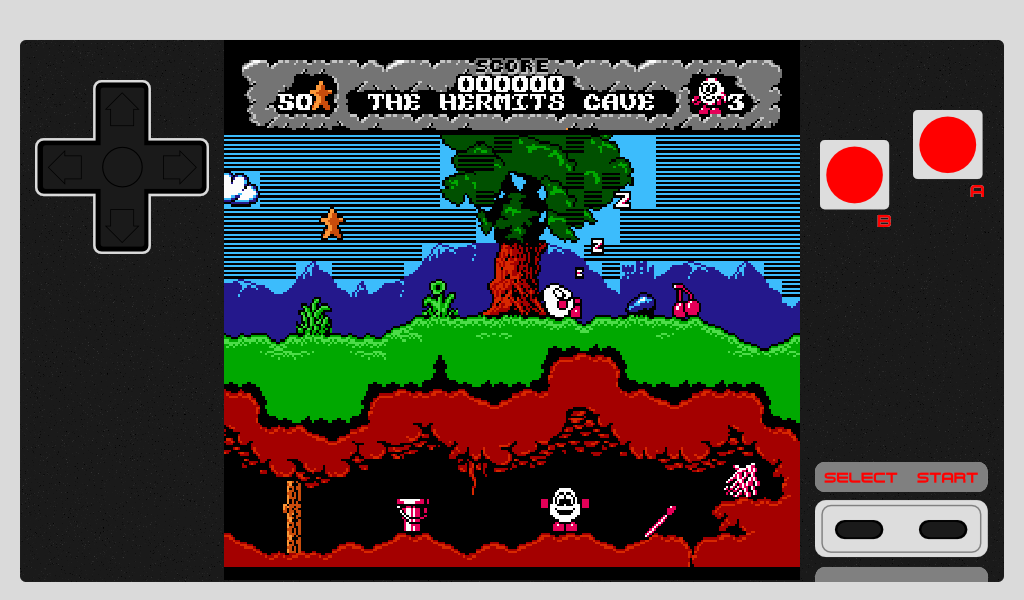
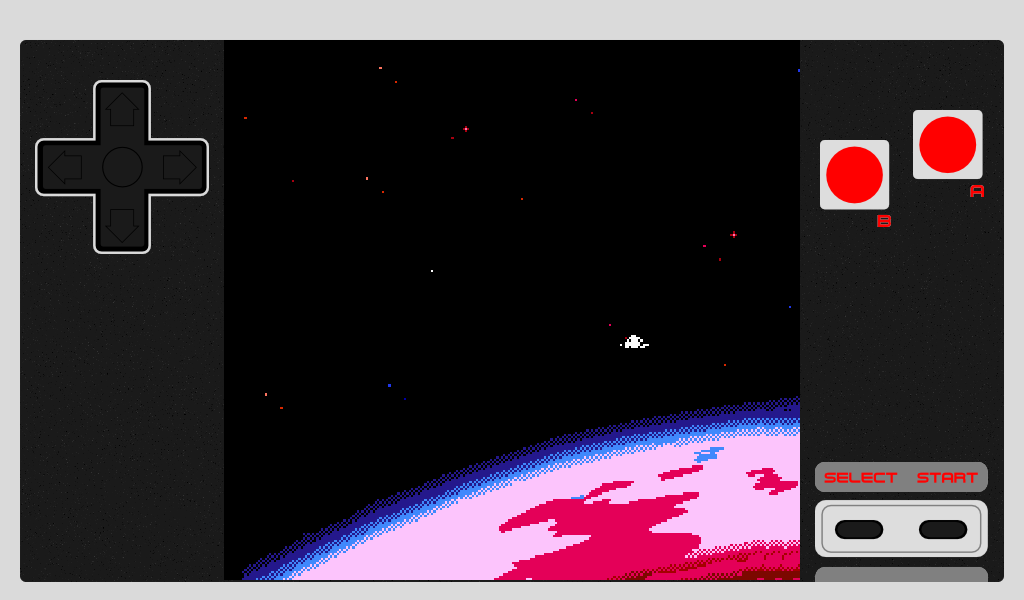
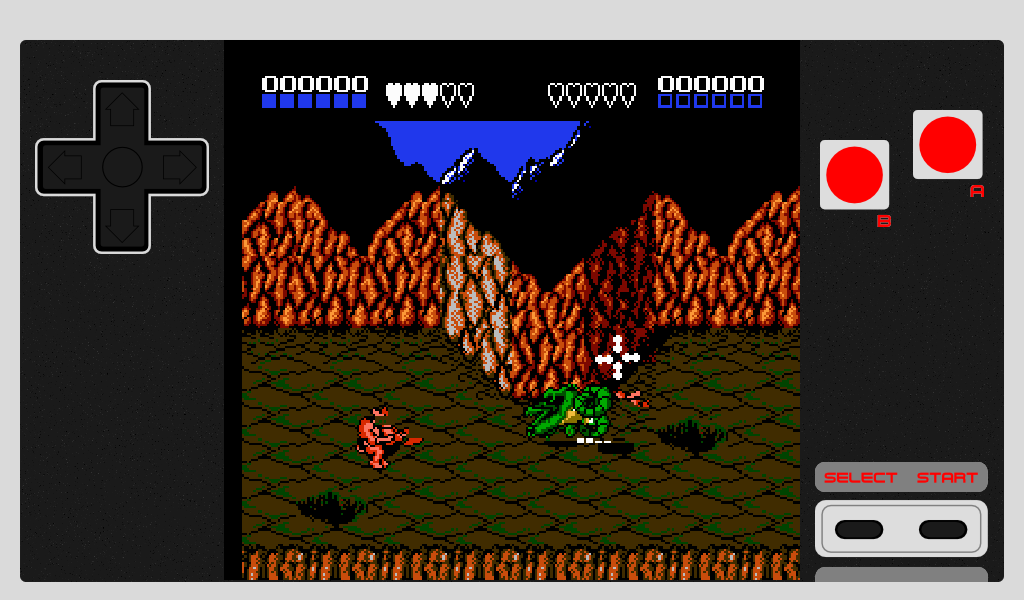
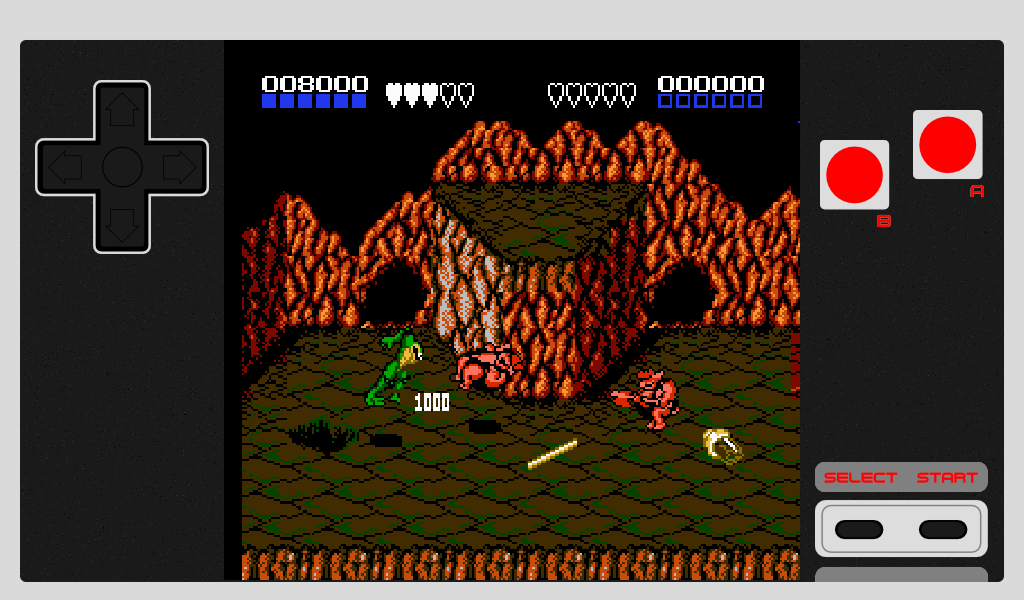
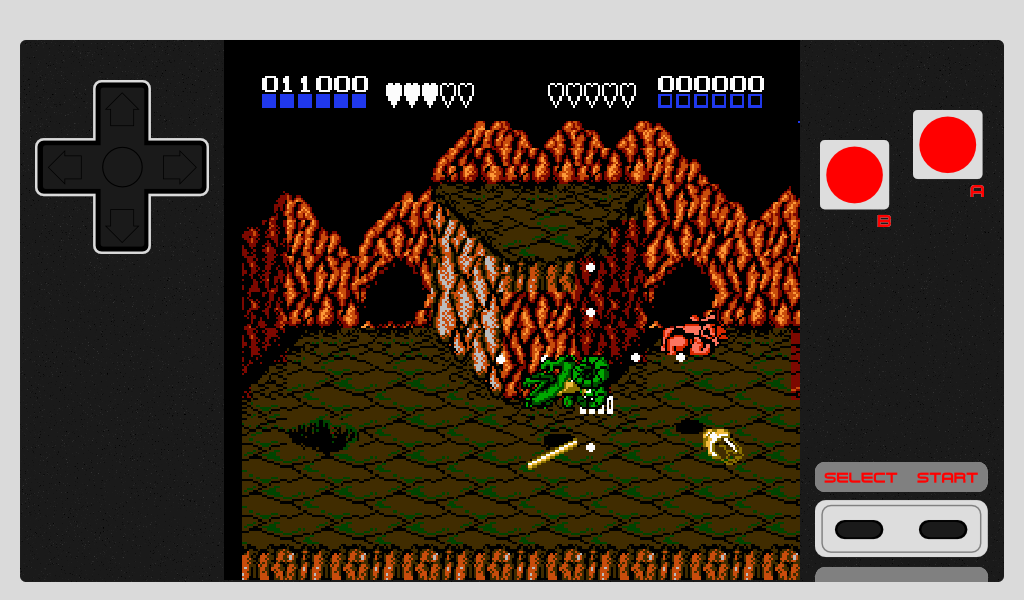
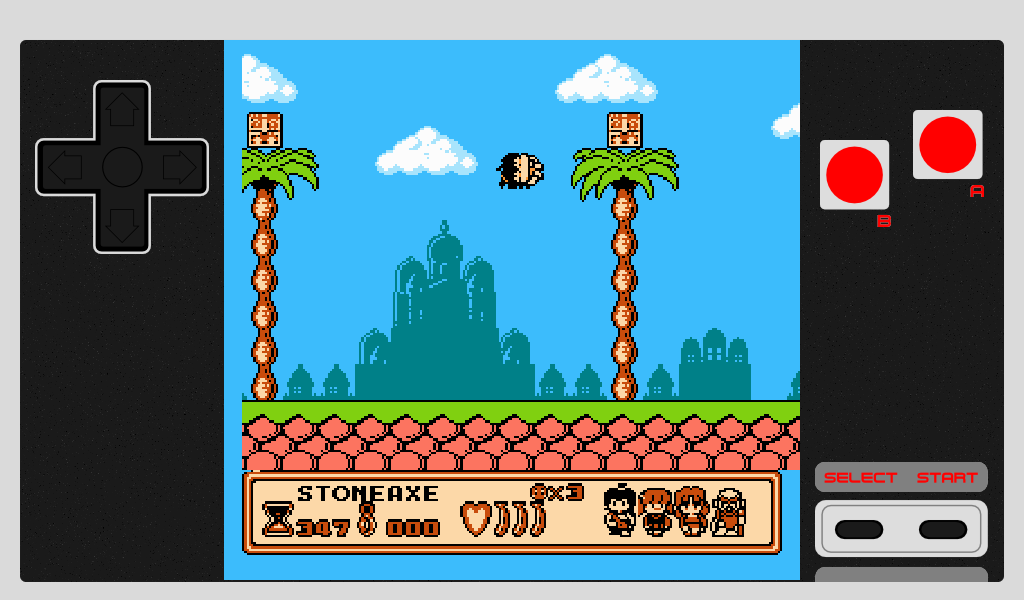
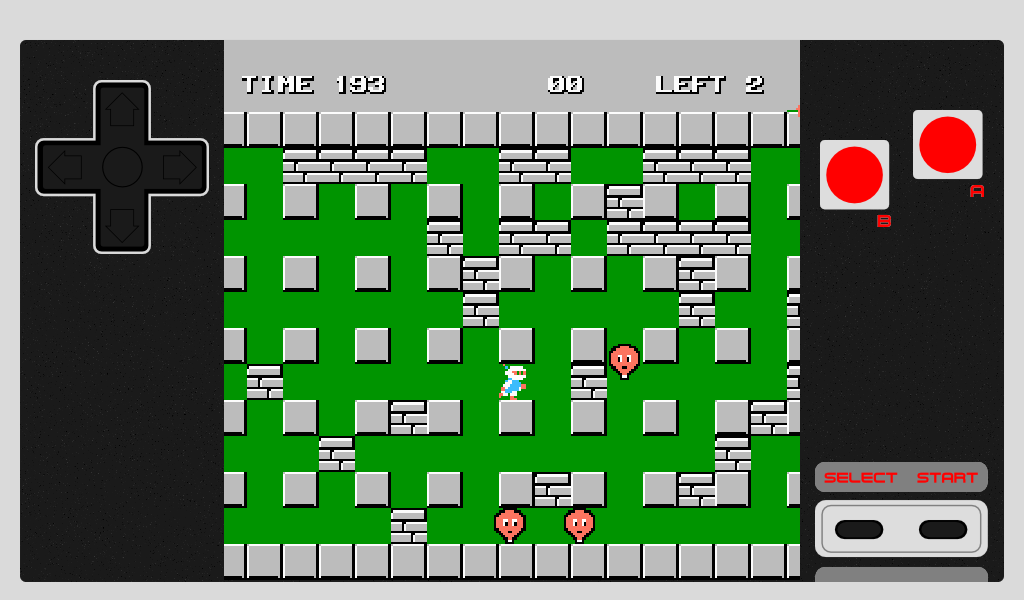
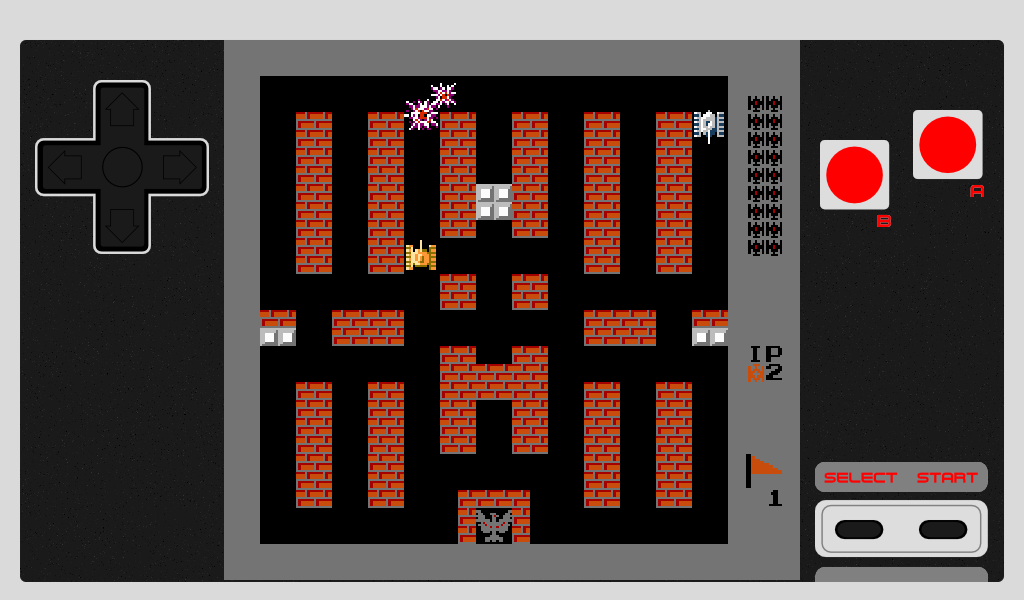
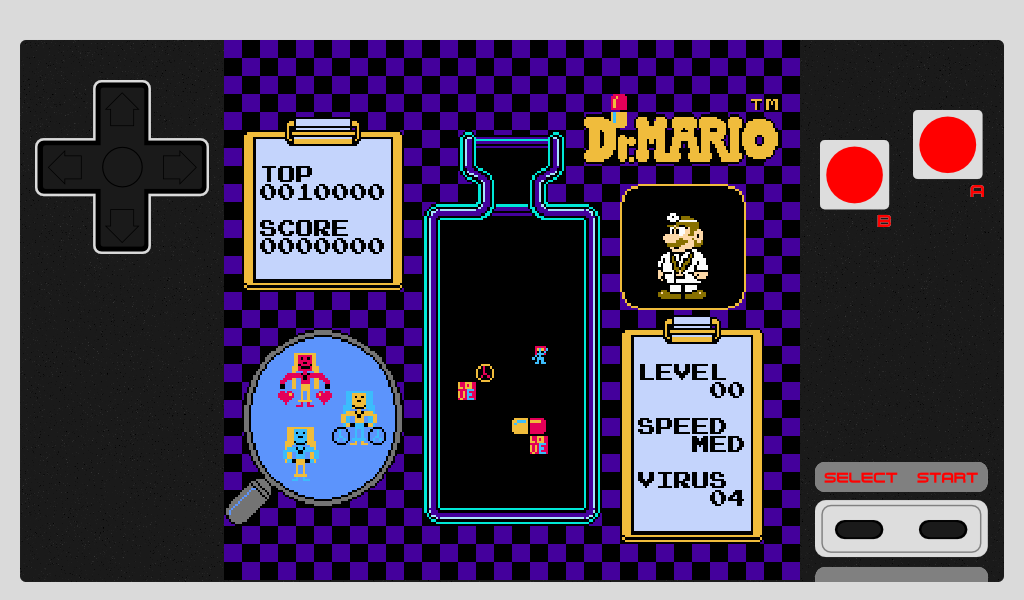
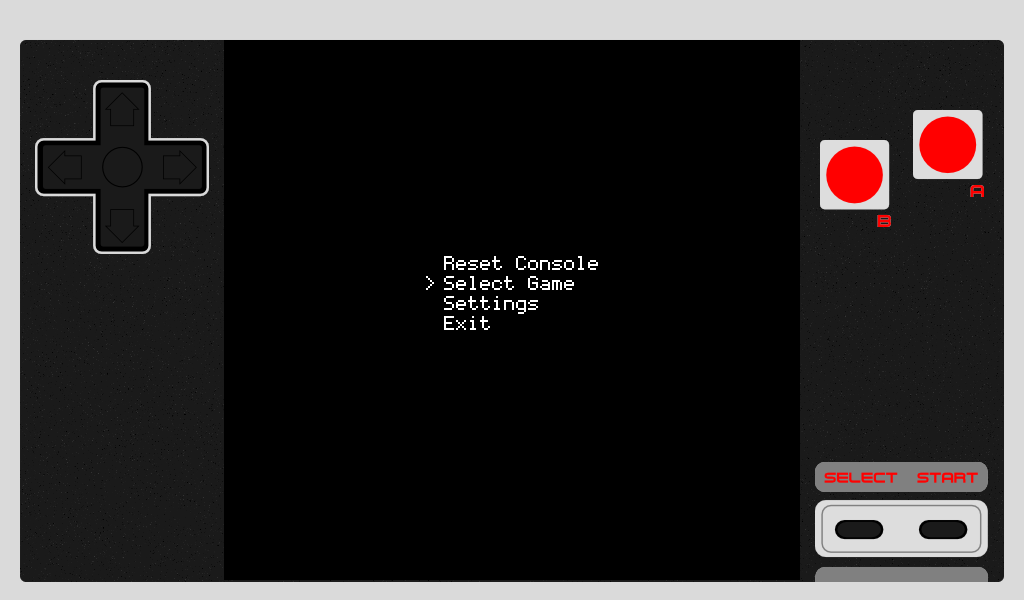
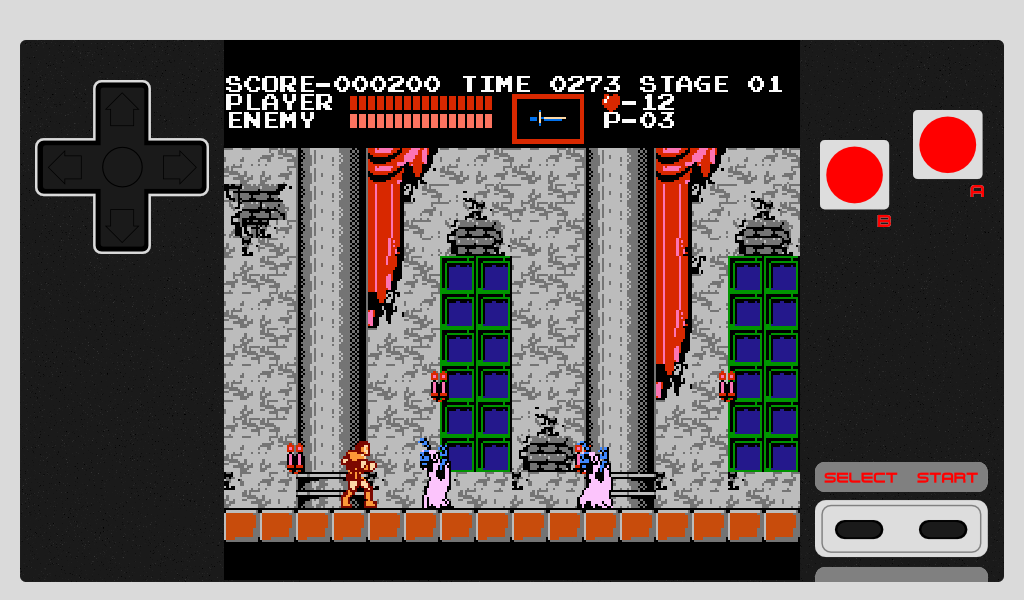
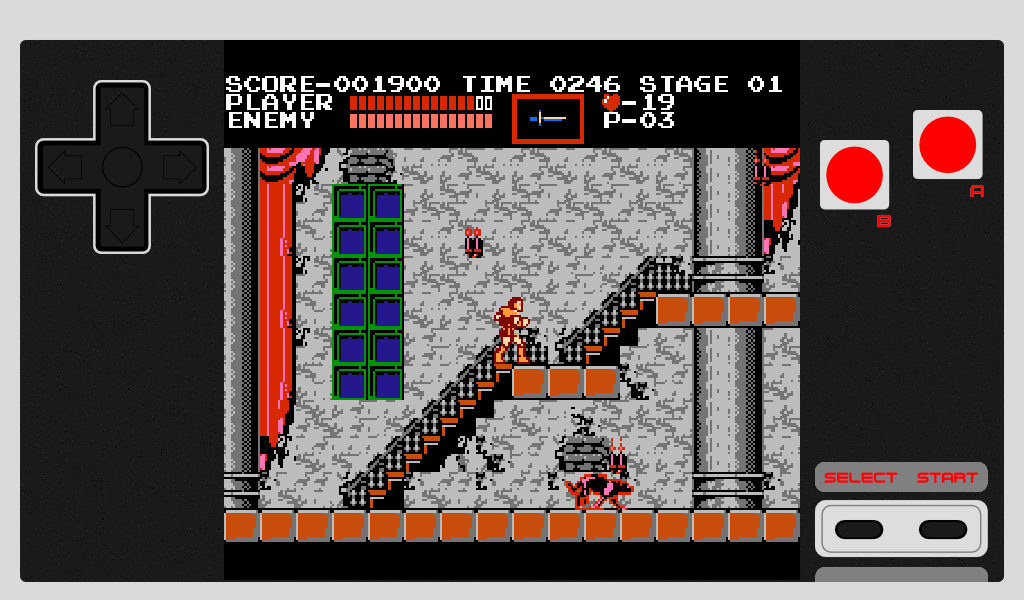
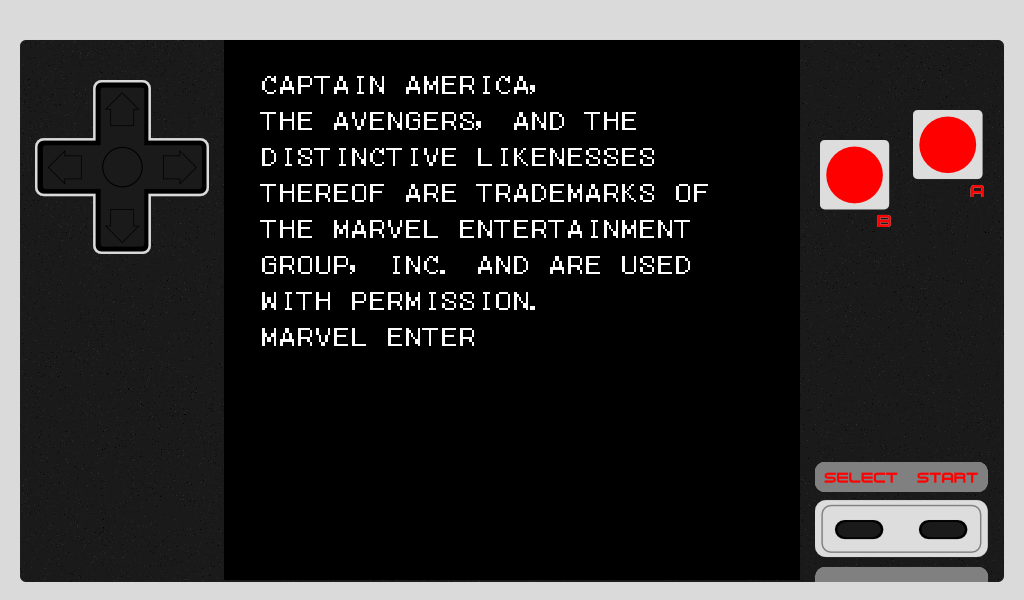
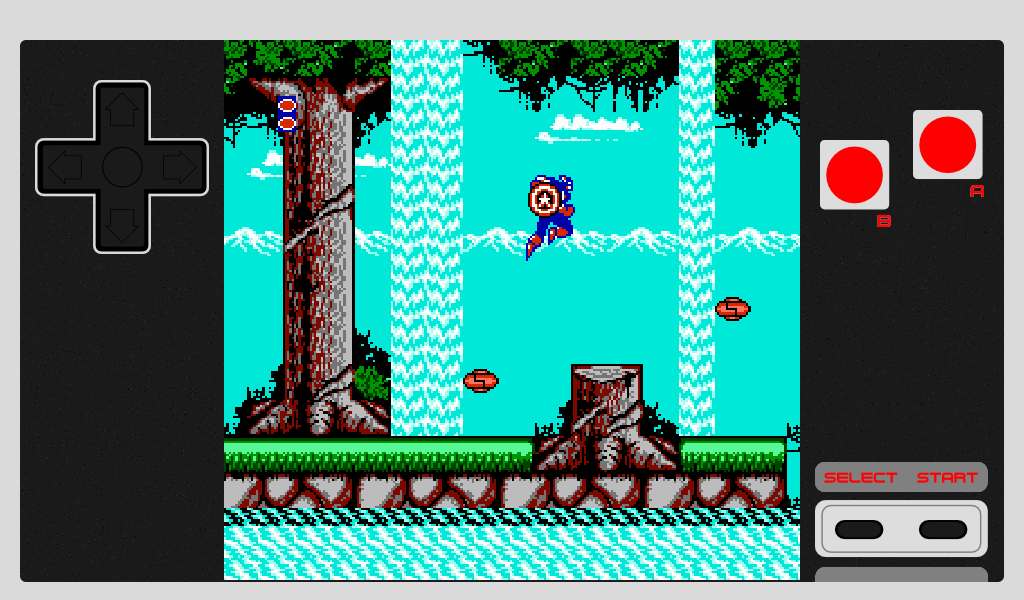
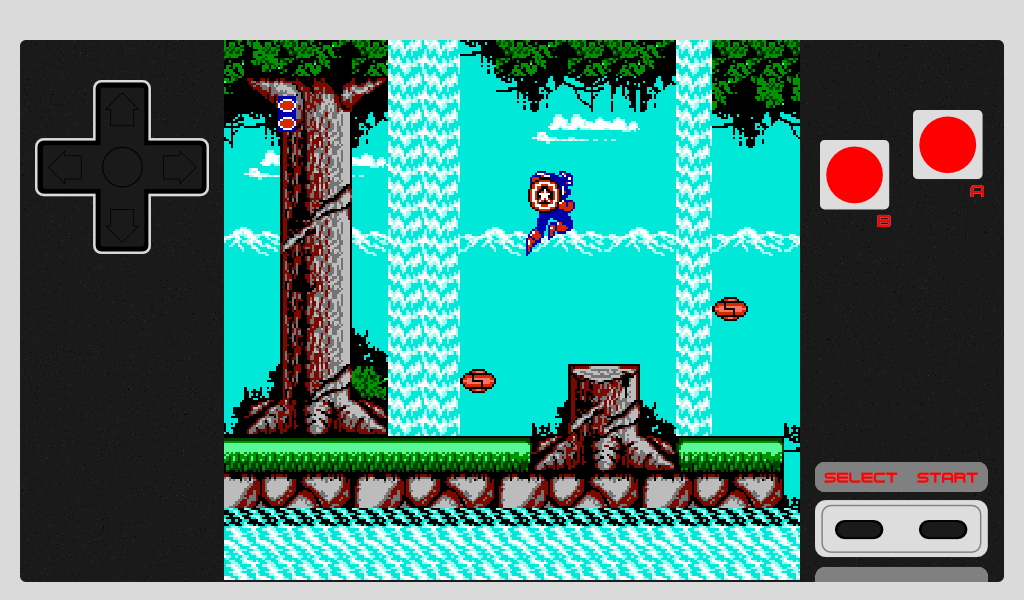
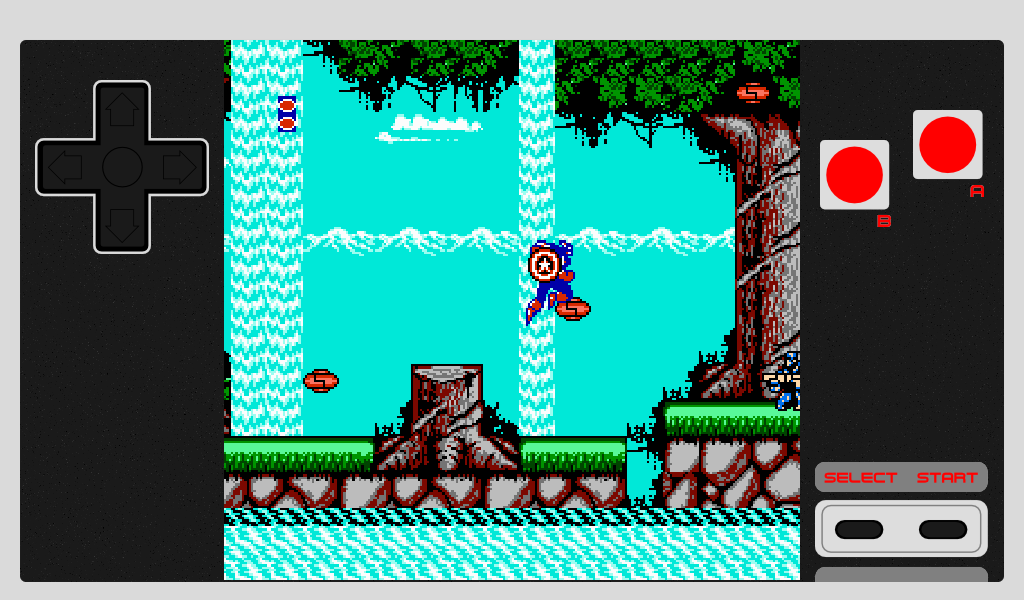
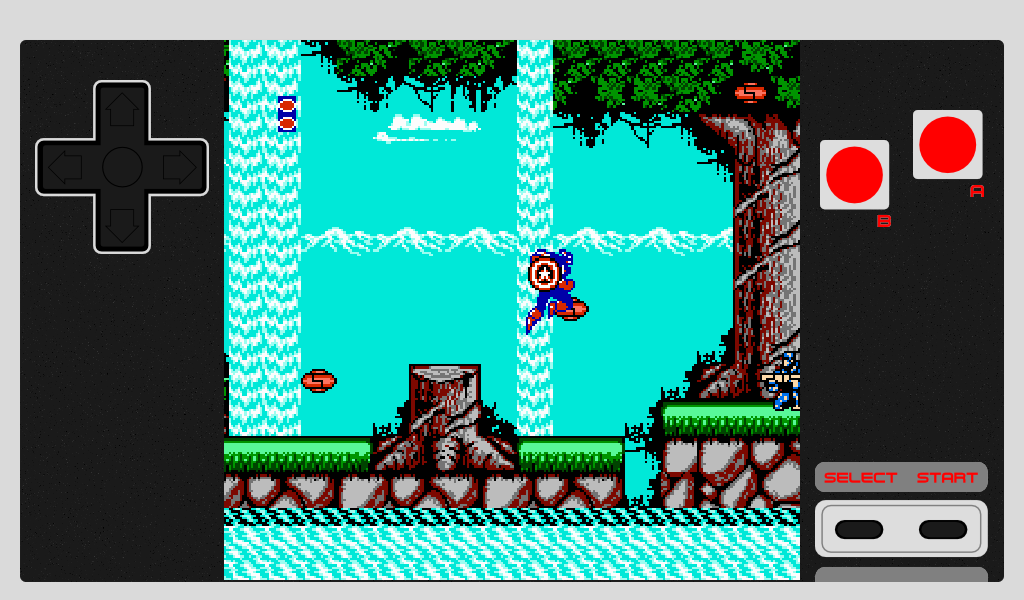
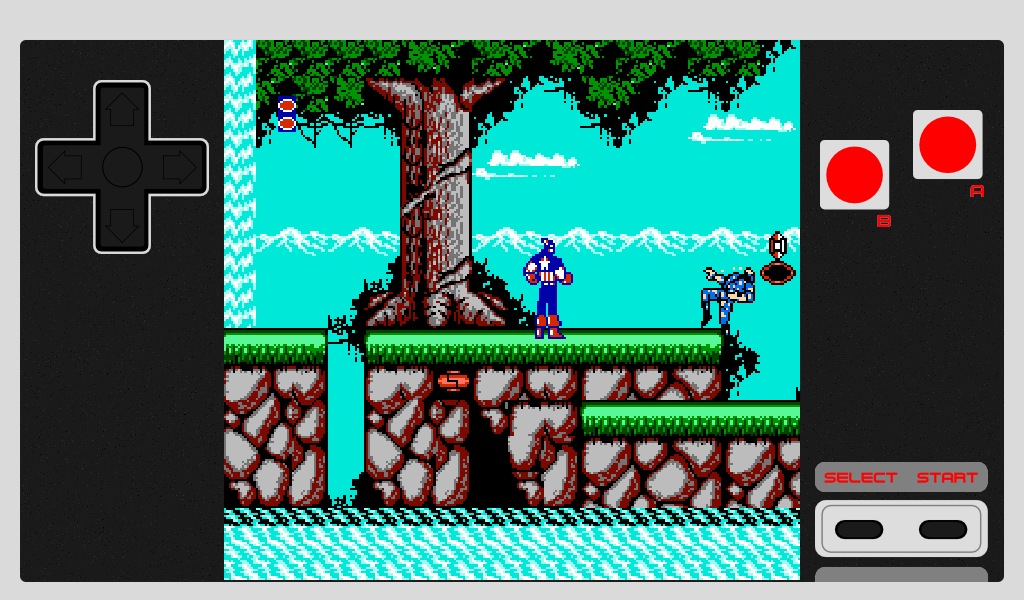
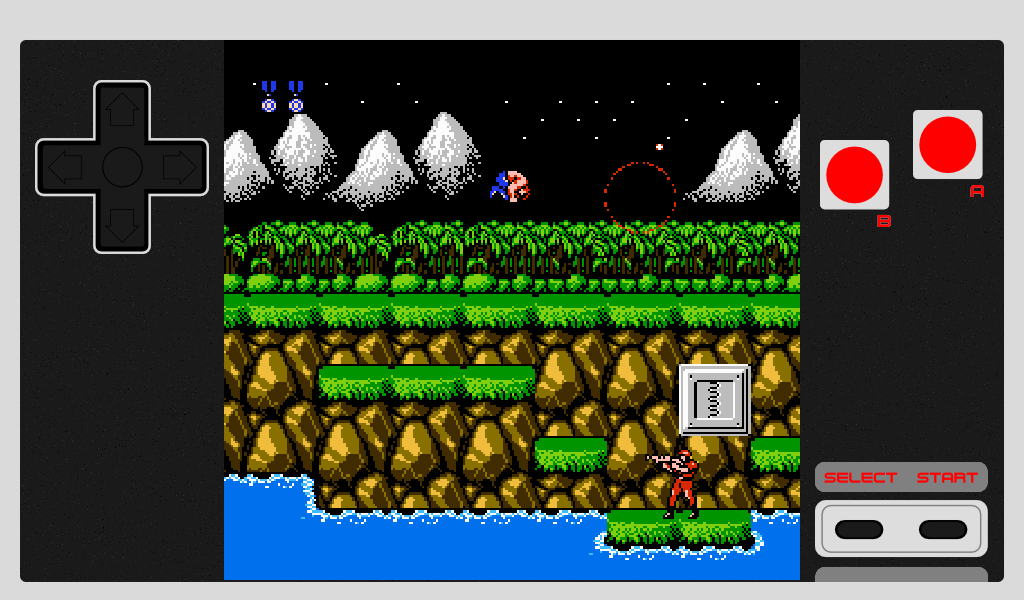
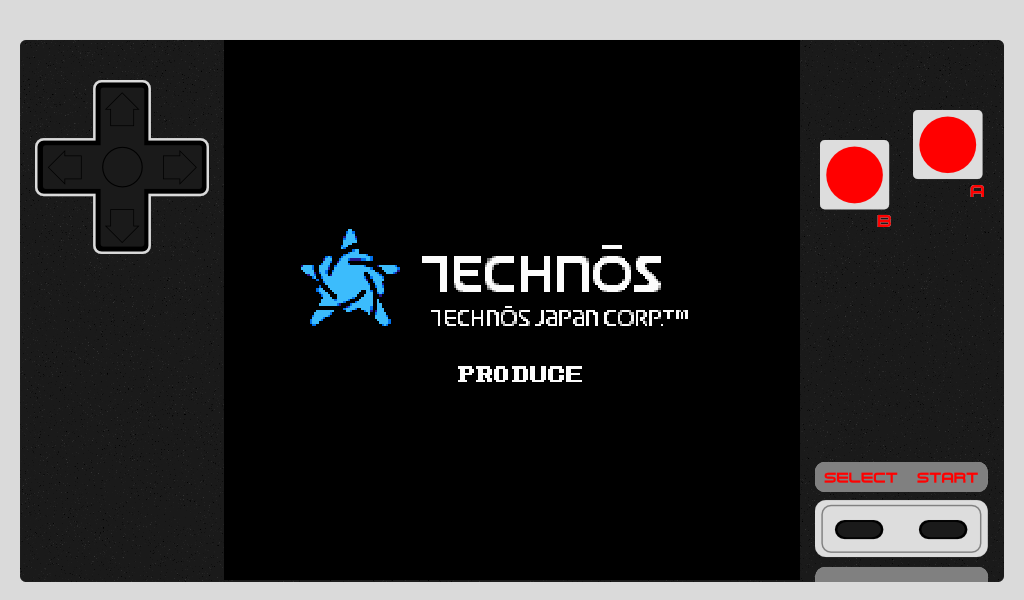
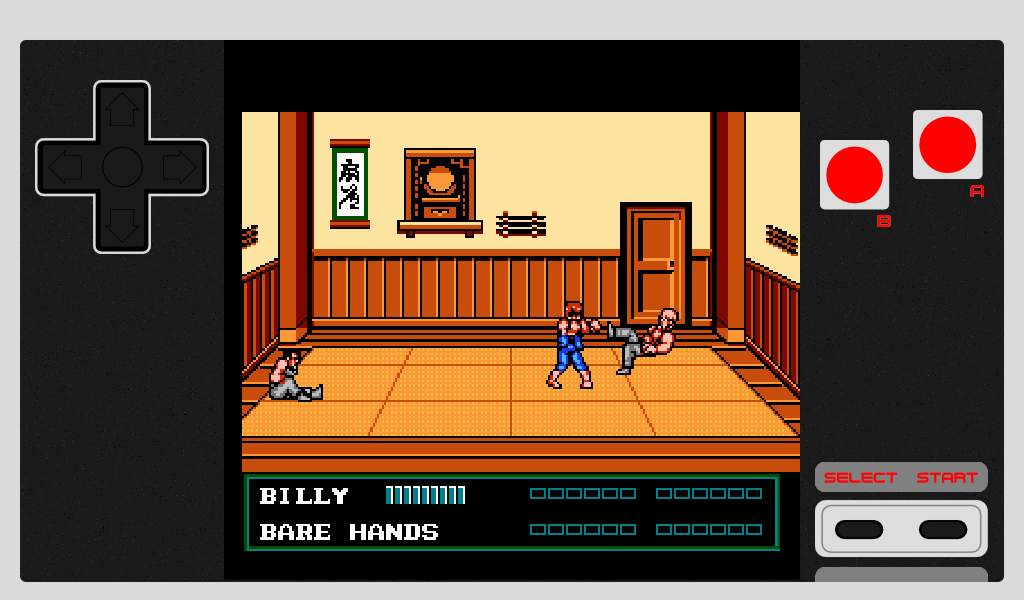
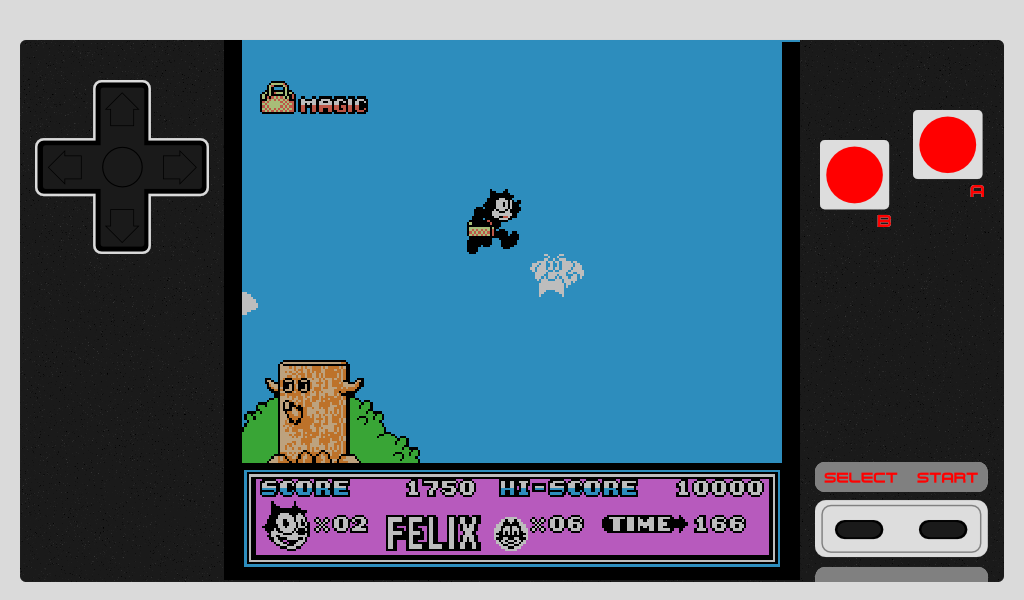
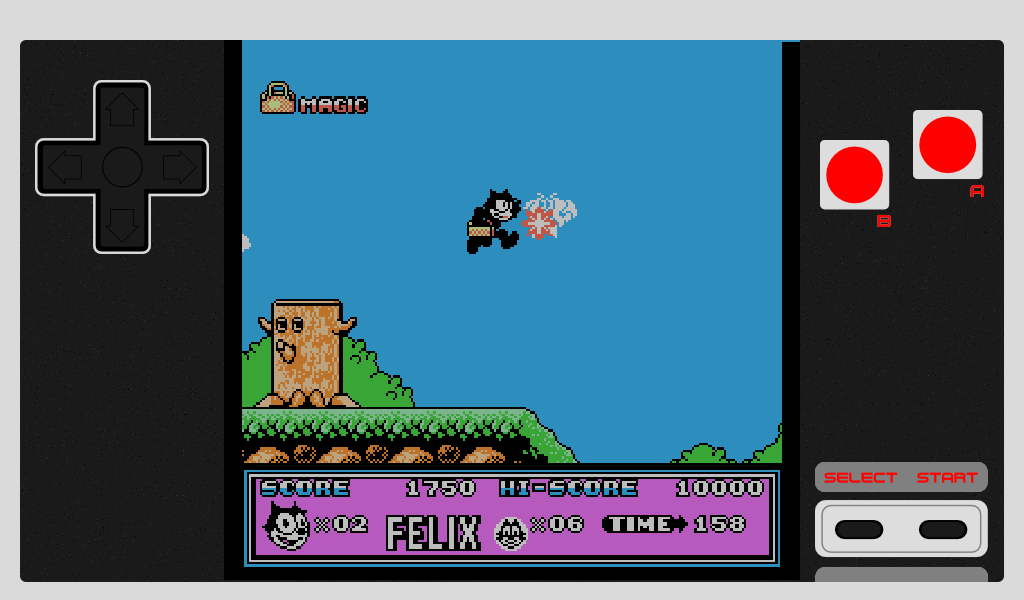
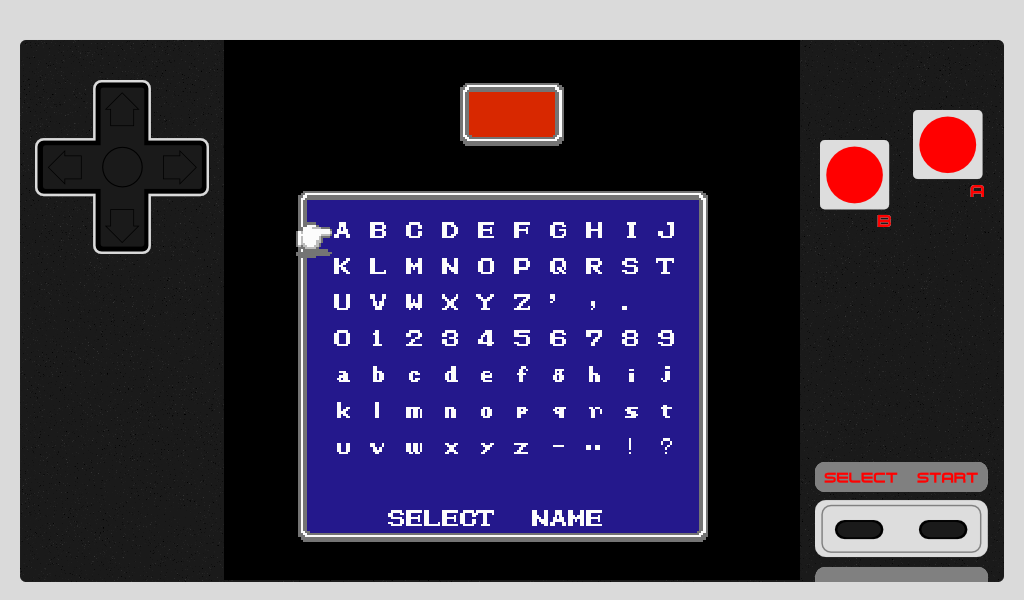
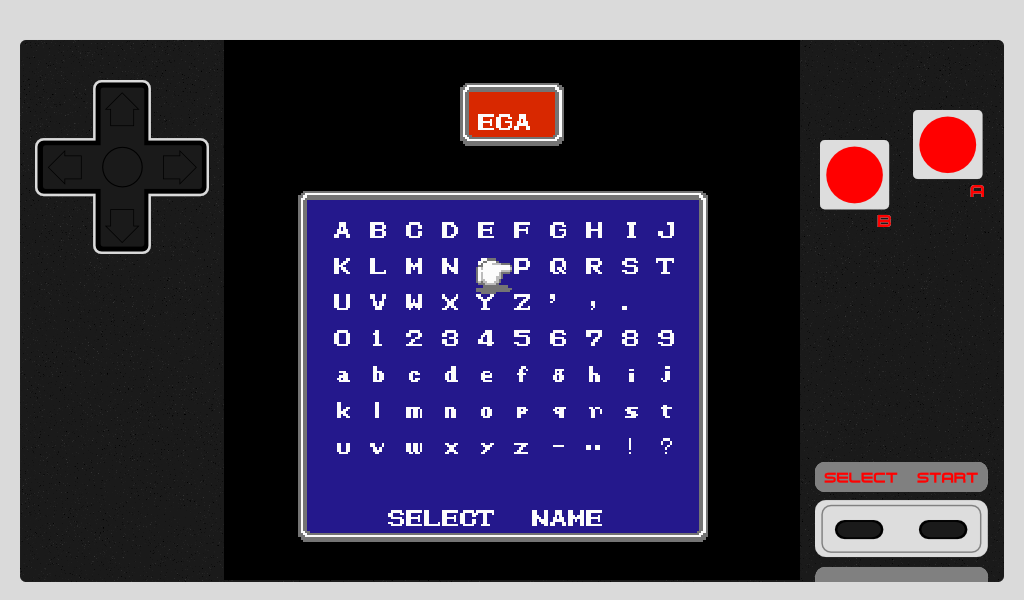
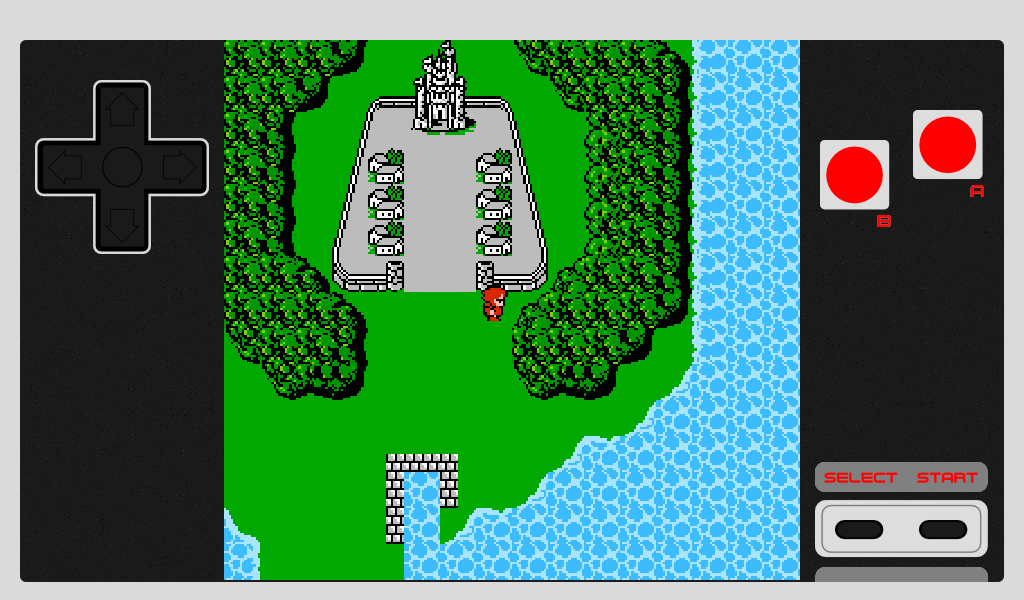
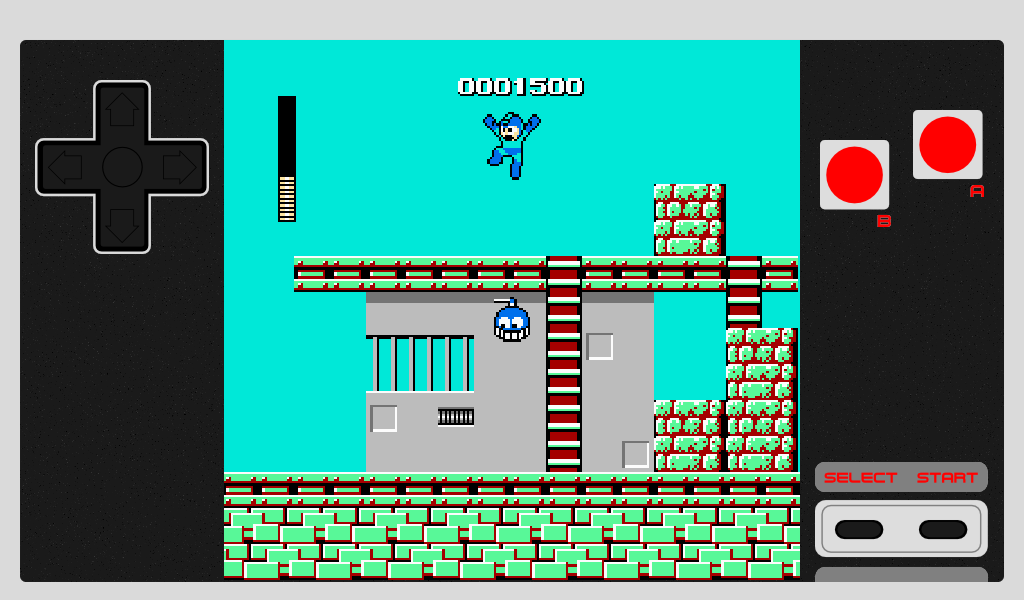
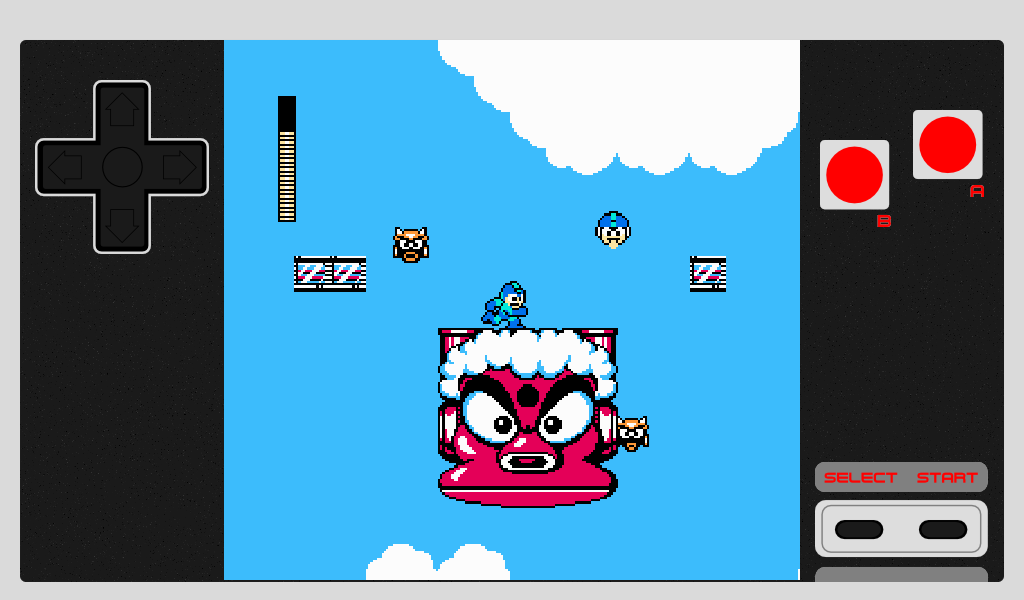
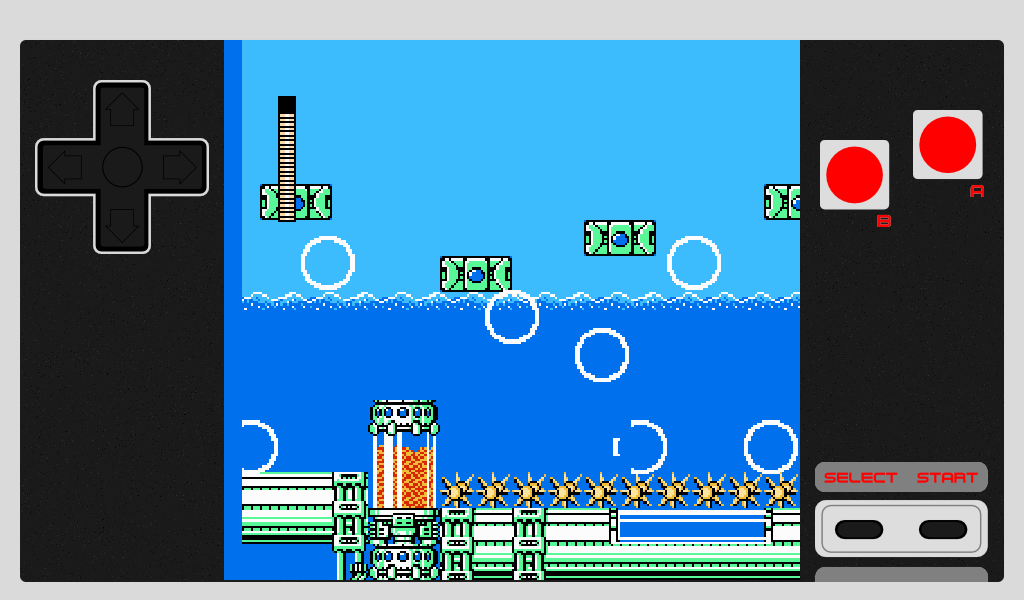
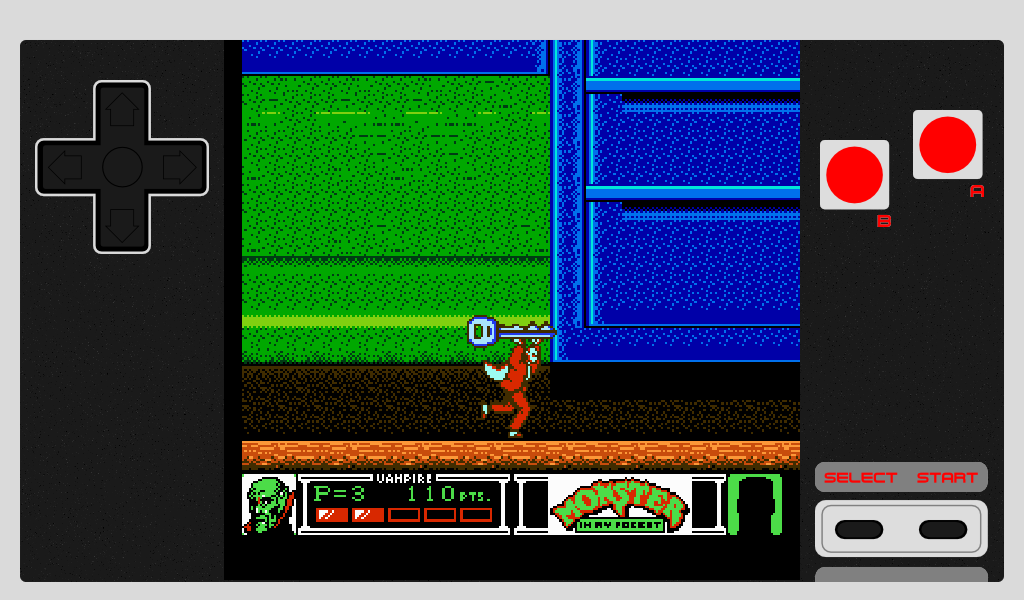
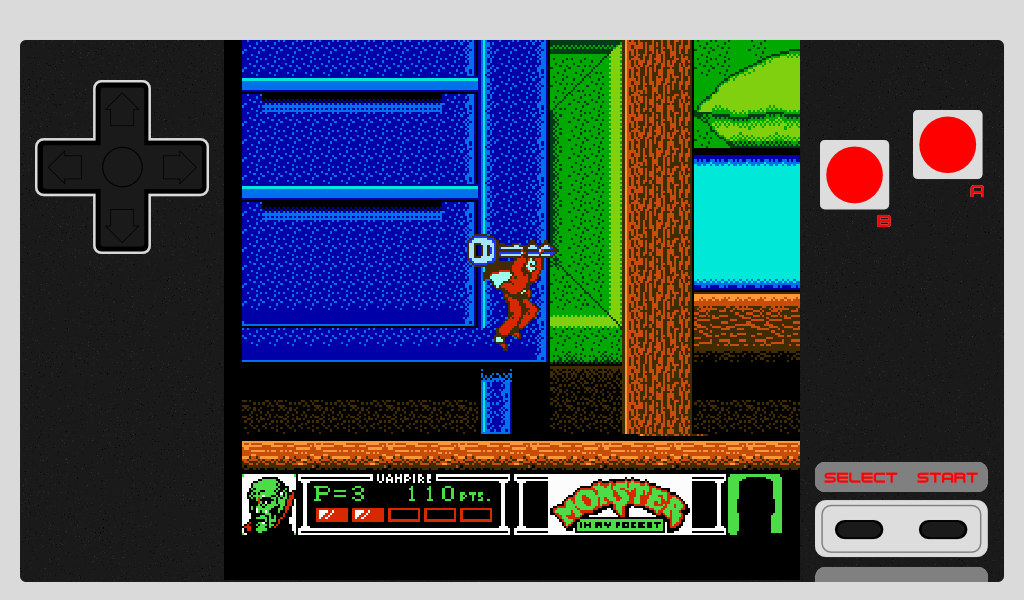
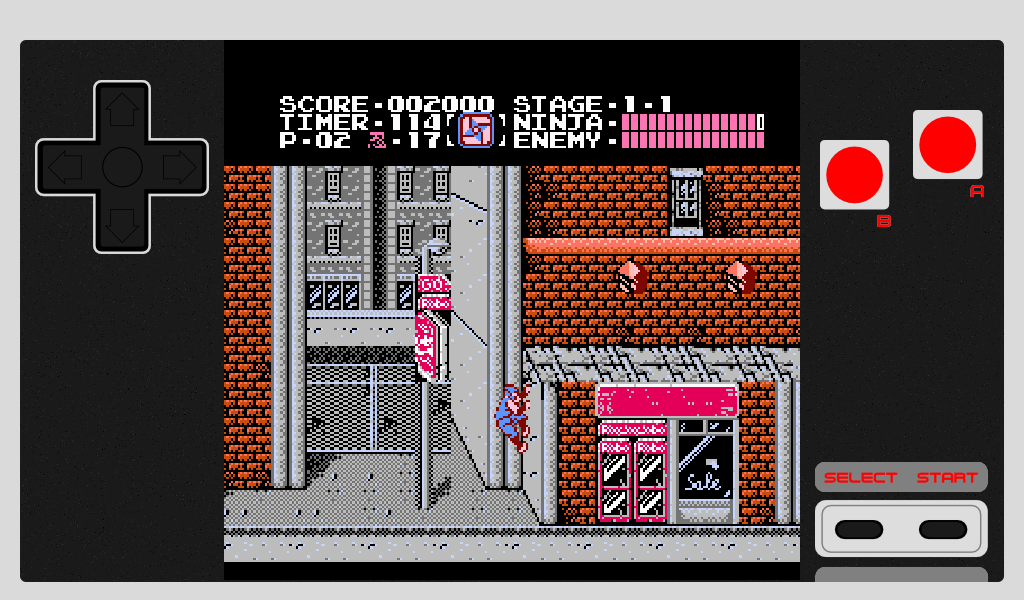
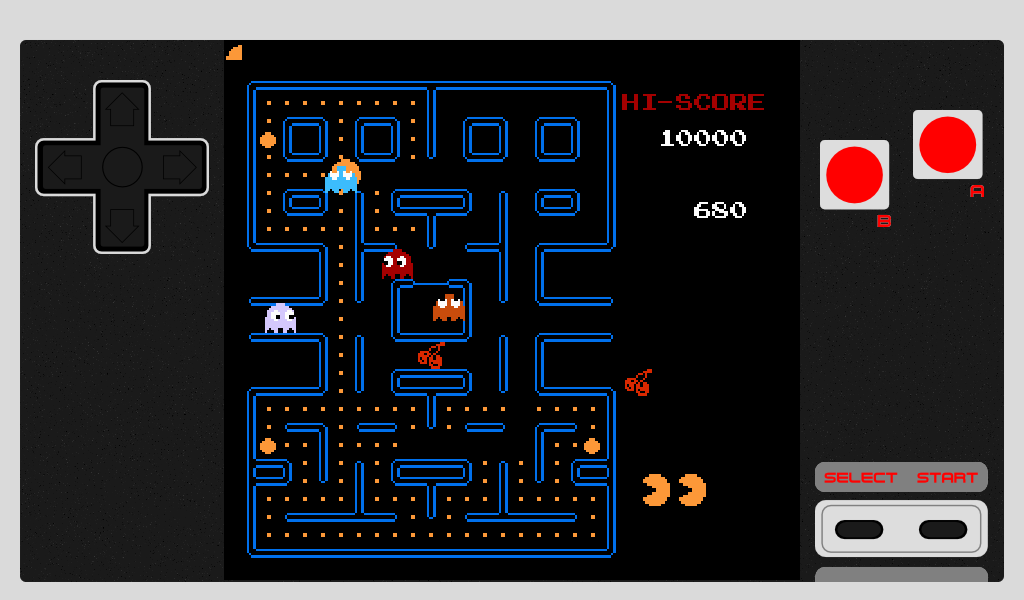
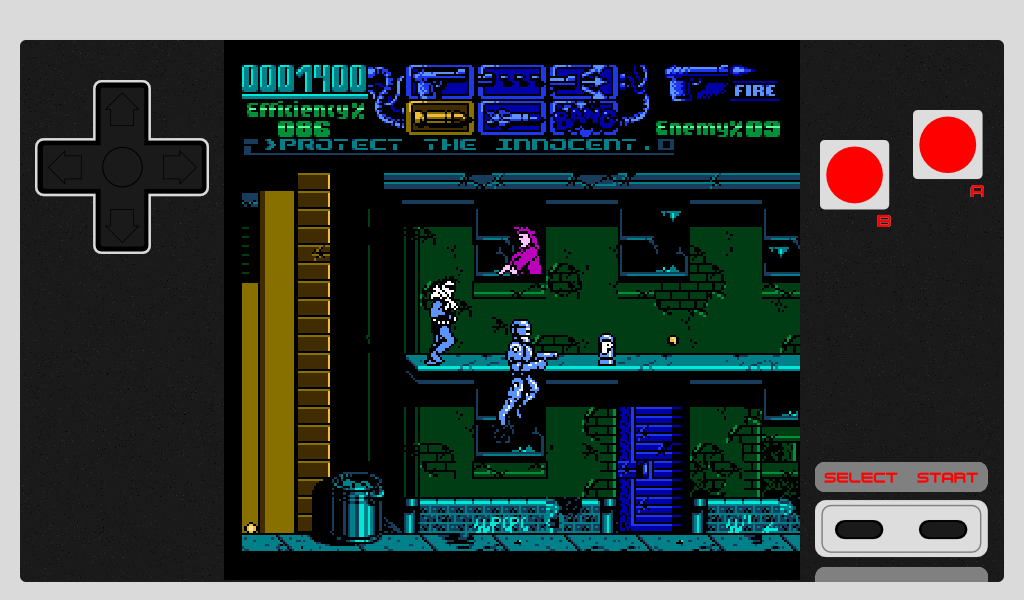
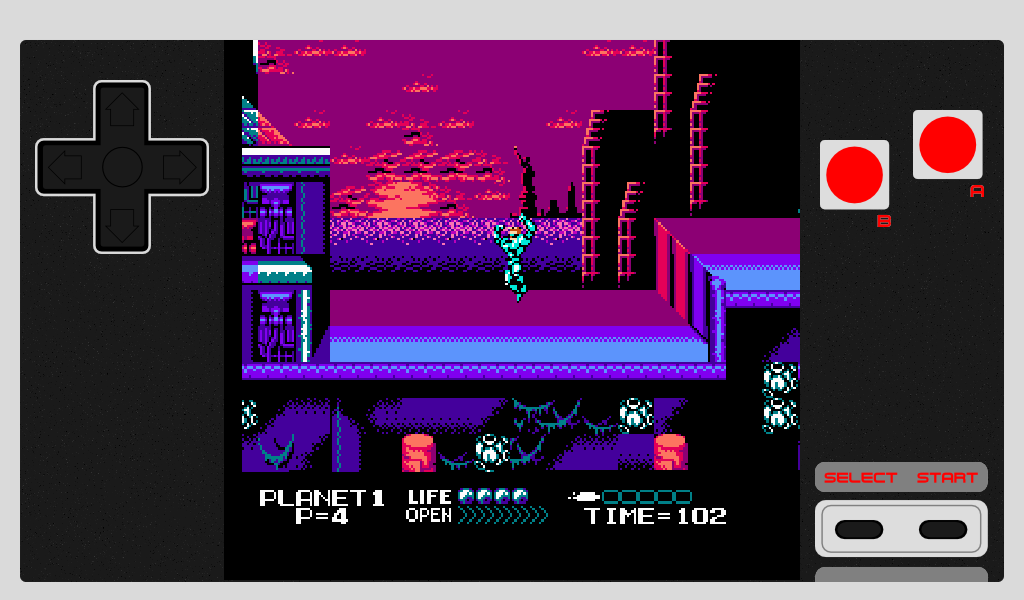
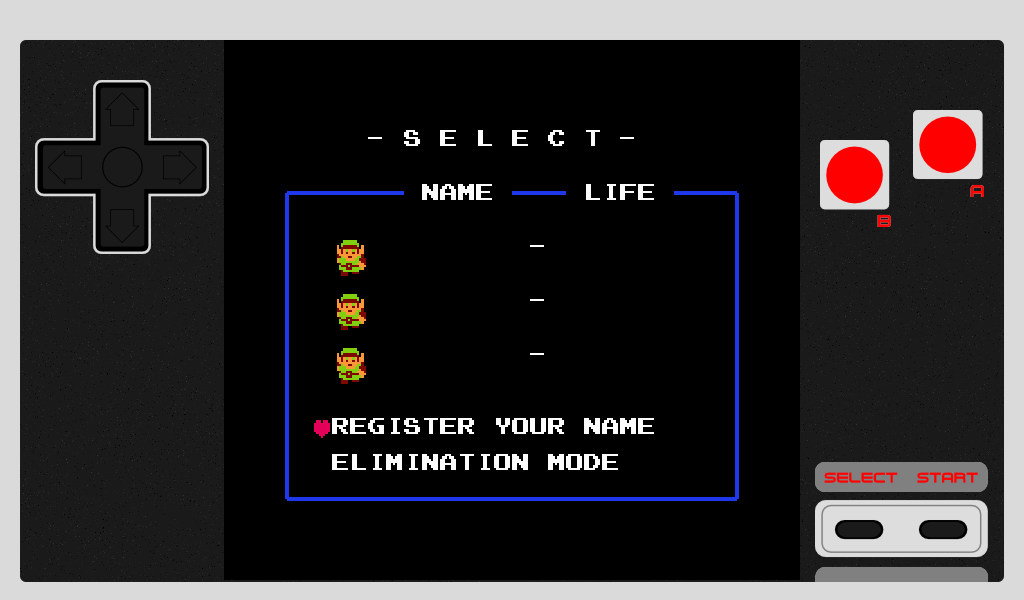
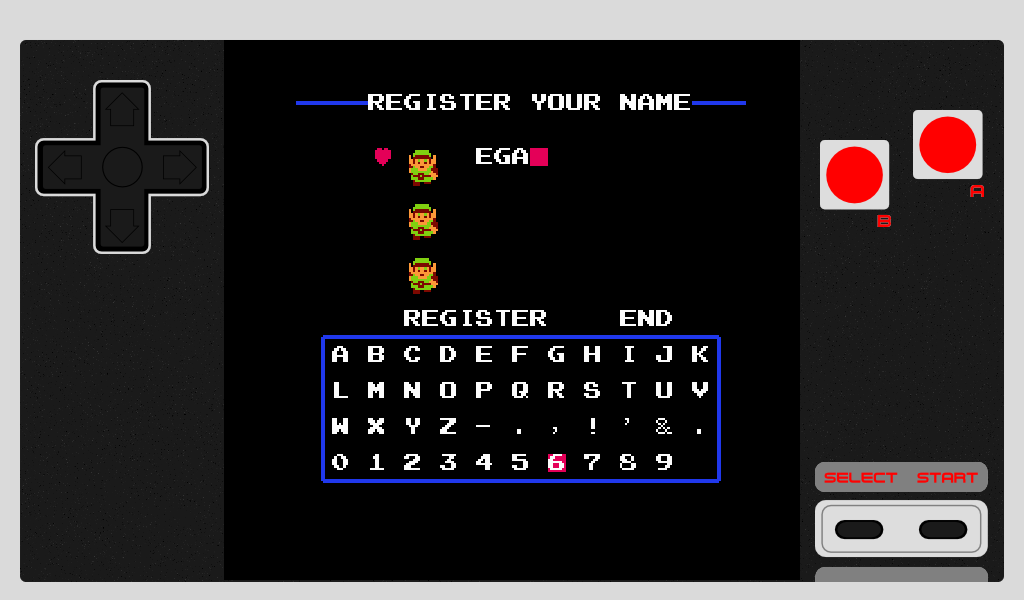
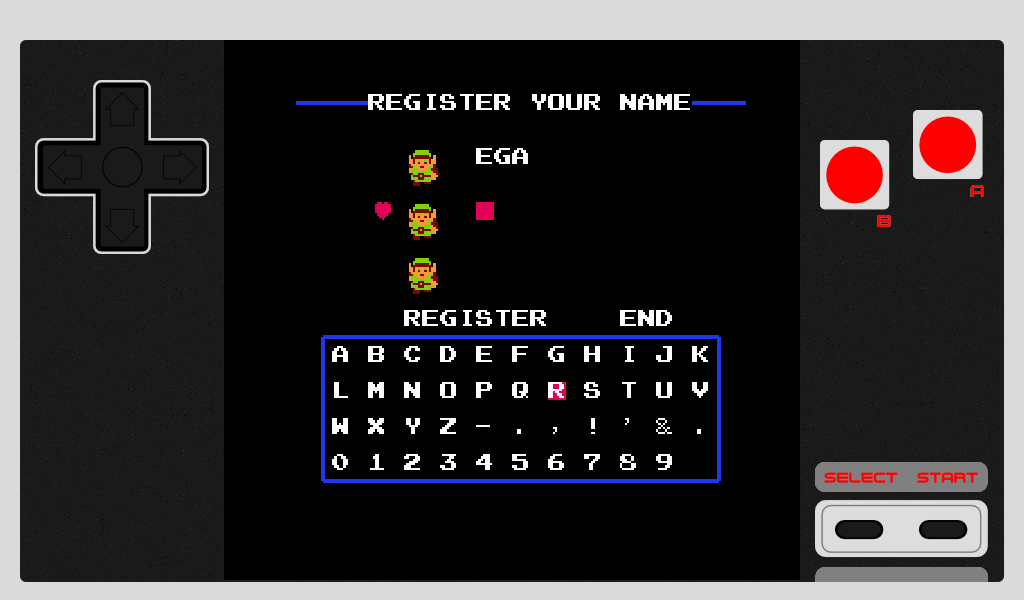
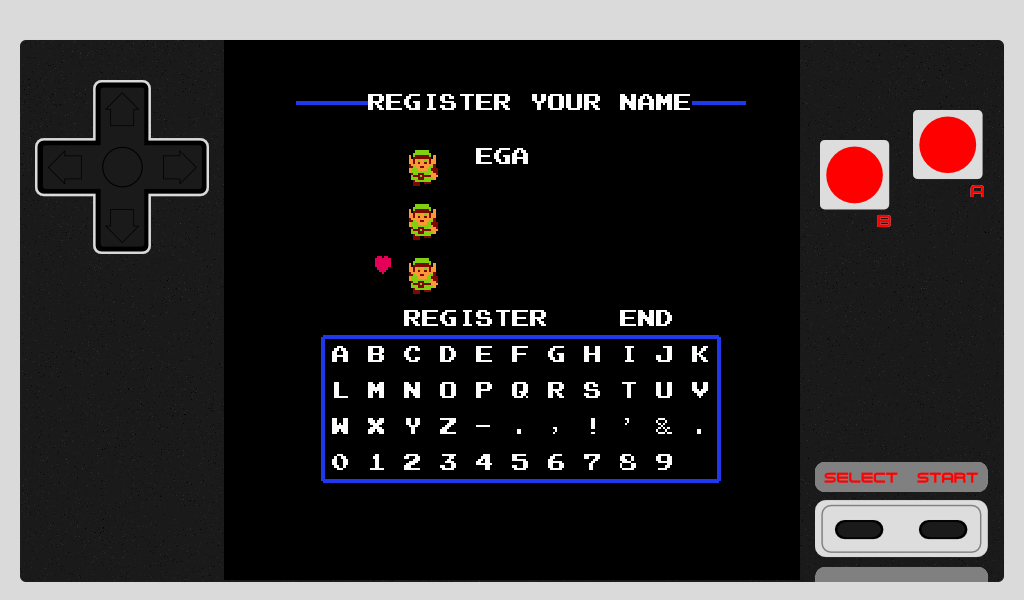
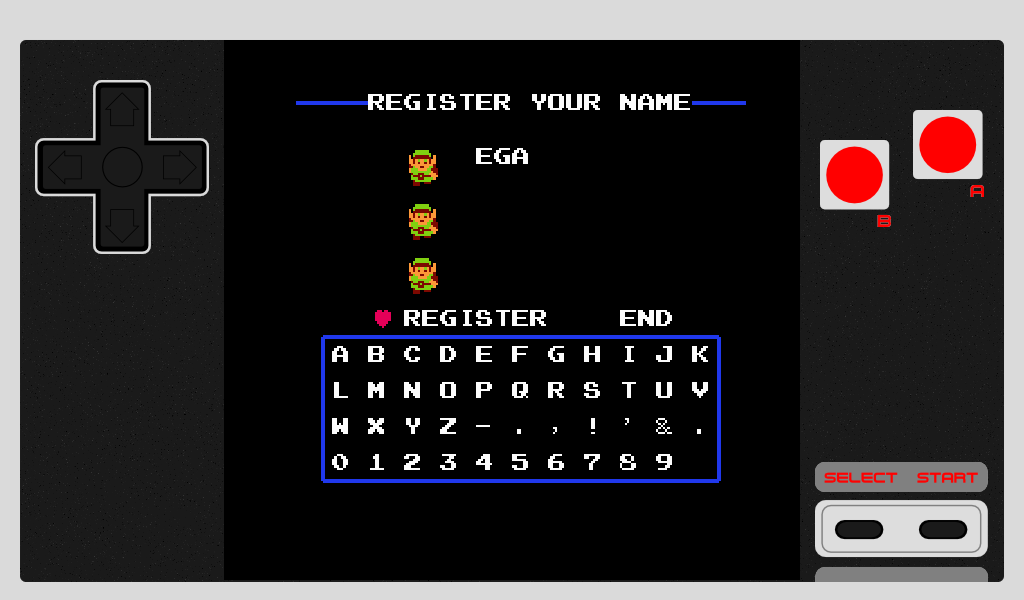
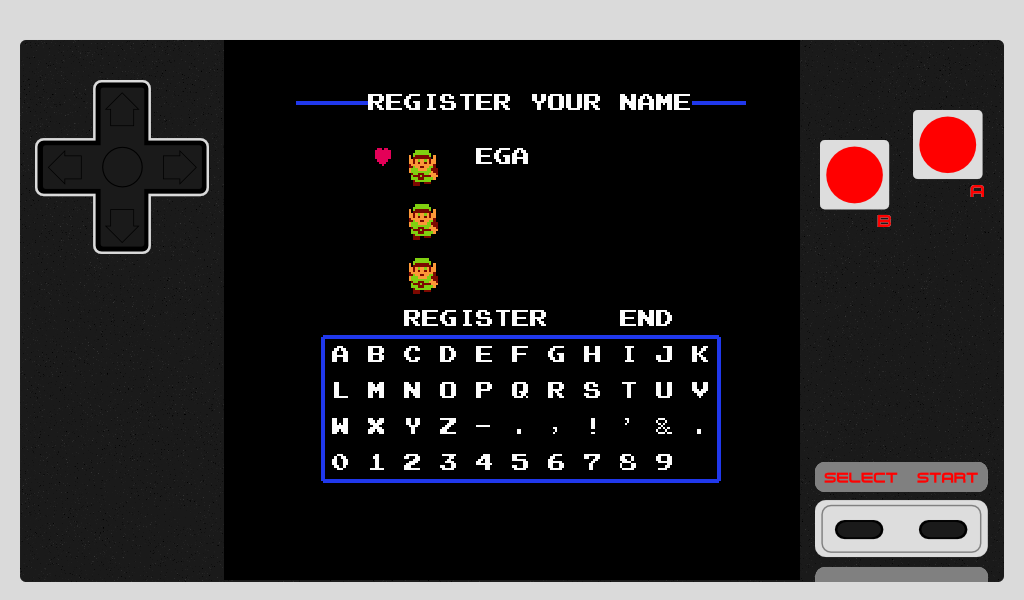
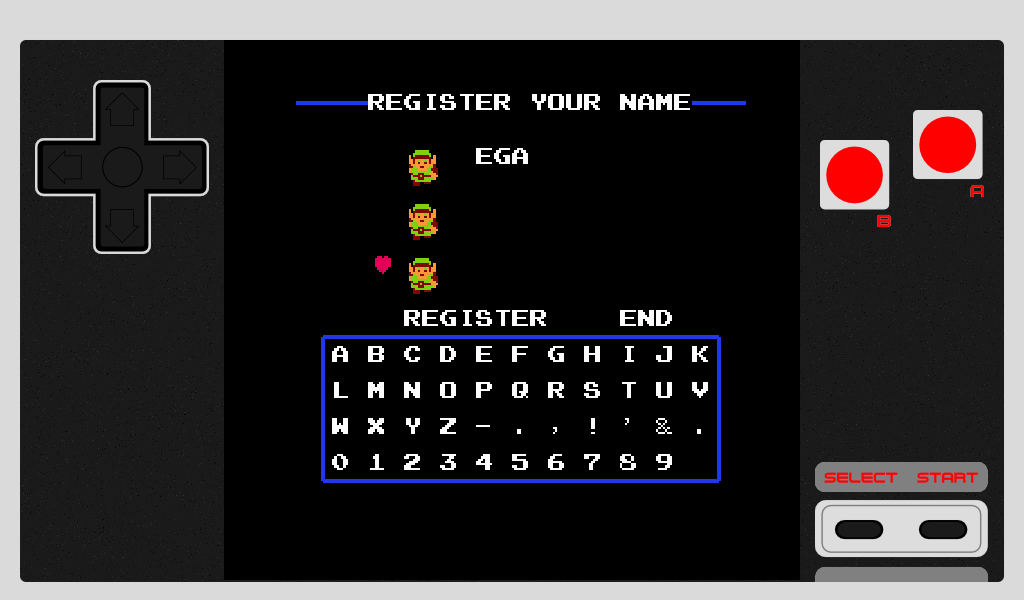
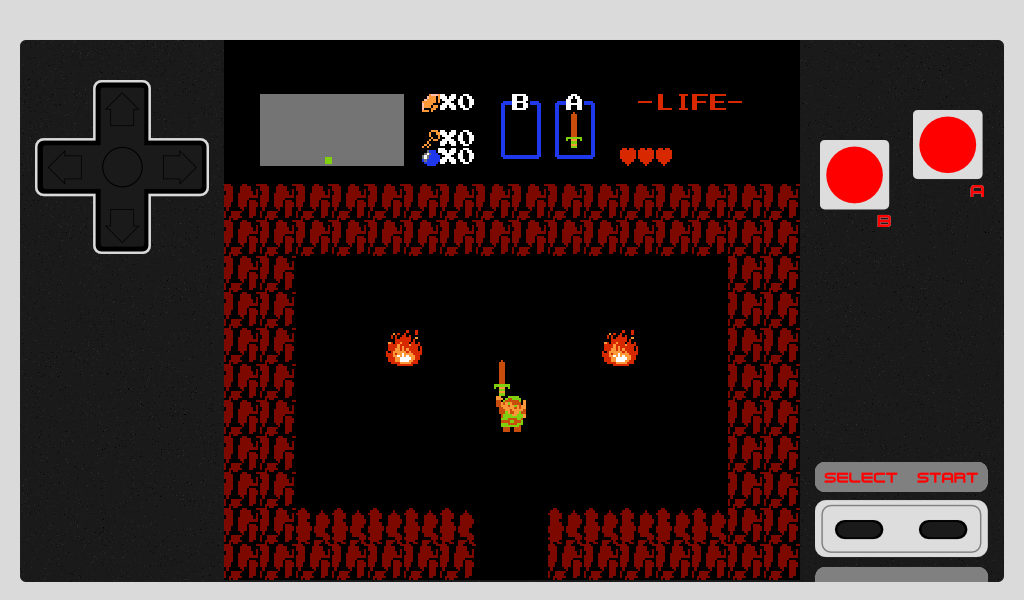
Features
- Authentic Famicom gamepad look & feel
- Nintendo 8-bit emulation (FCEUX codebase)
- Plays almost all NES / Famicom / Famiclone games
- Pure OpenGL ES rendering, OpenAL sound
- Touch controls + ROM menu